Claudashboard
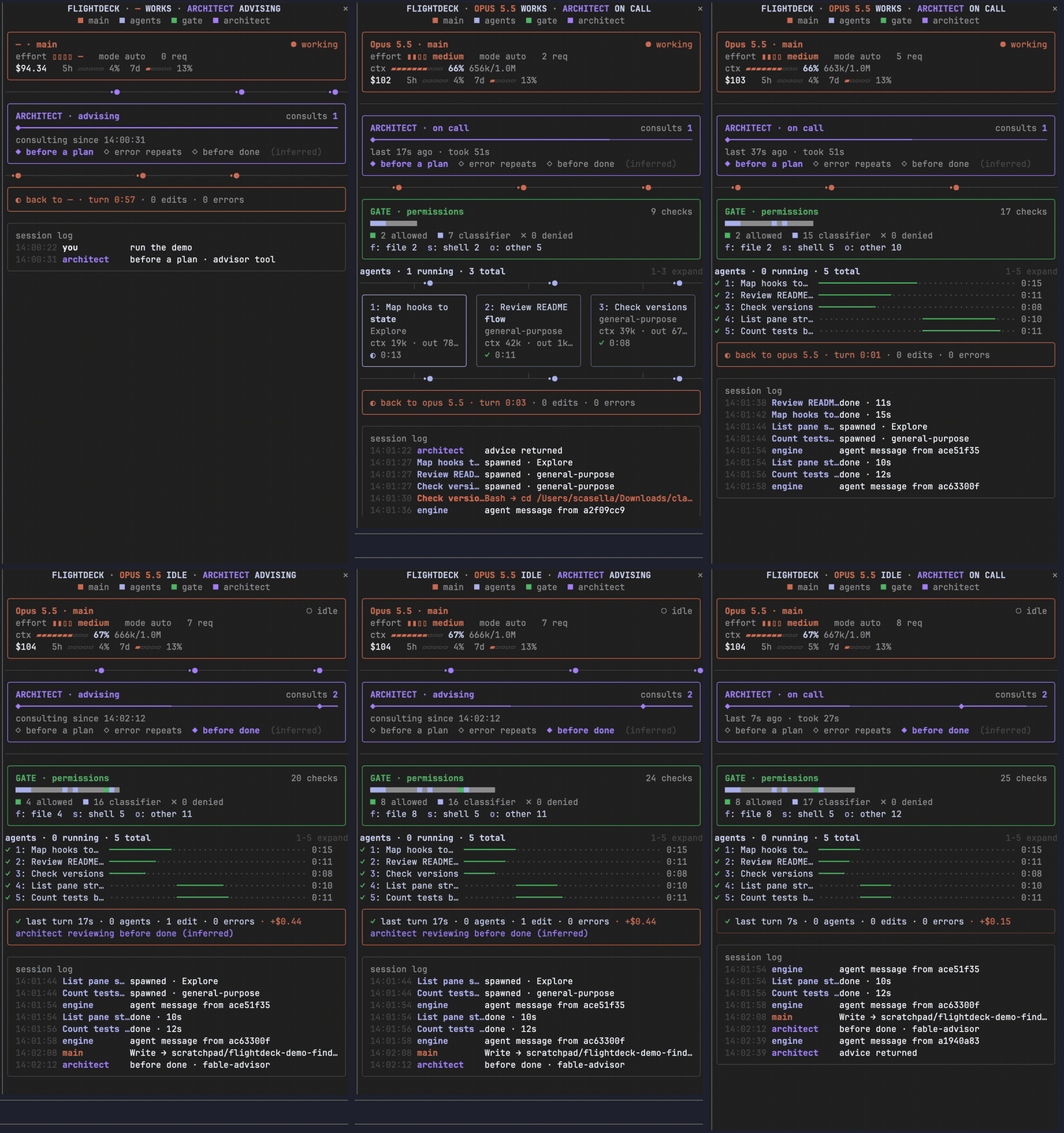
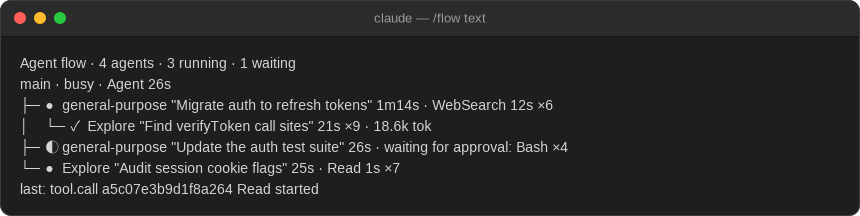
A clean hub pane for Claude Code. It shows the session's vitals, the subagents that are working right now, and a file explorer you drive with the mouse or the keyboard, with a syntax-highlighted preview and a small editor inside the pane.
claude plugin validate to auditGuide →Draws UI elements or stores local mod state only. No filesystem, shell, or network access detected.
Statically scanned from hooks & source. Learn how to audit
Claudashboard
A clean hub pane for Claude Code. It shows the session's vitals, the subagents (running and finished), and a file explorer you drive with the mouse or the keyboard, with a syntax-highlighted preview and a small editor inside the pane.
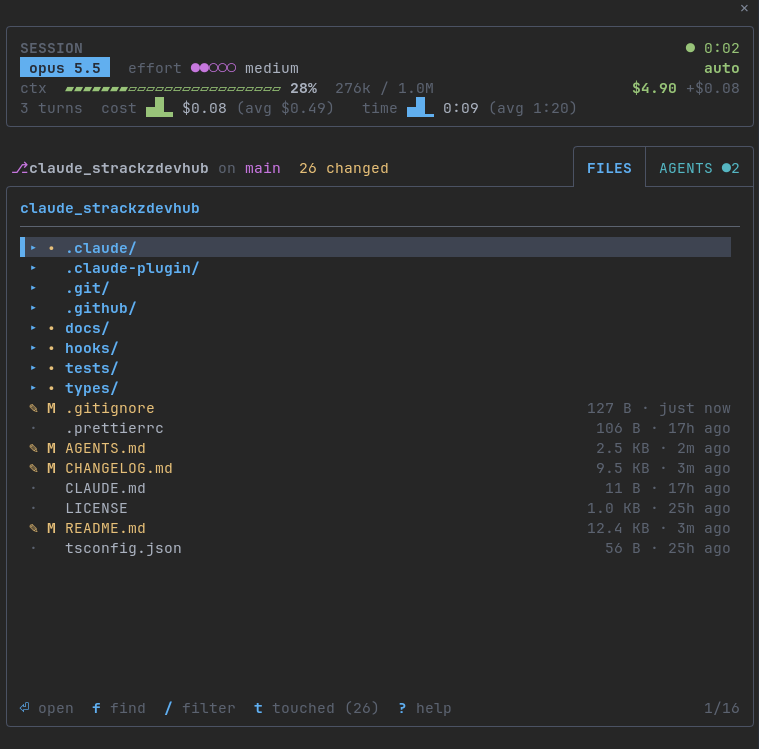
Every number comes from real session events. Nothing leaves your machine.
Install
You need Claude Code 2.1.287 or later, which is when mods arrived.
Inside Claude Code:
/plugin marketplace add strackzdev/Claudashboard
/plugin install claudashboard@claudashboard
/claudashboard
From a local clone
git clone https://github.com/strackzdev/Claudashboard
claude plugin marketplace add ./Claudashboard
claude plugin install claudashboard@claudashboard
To try it for a single session without installing it:
claude --plugin-dir ./Claudashboard
What you see
Session
| Shows | Notes |
|---|---|
| Model | The main loop's model. 1M means the long-context variant. It's read when the session starts and updated on every step. |
| Effort | The current turn's reasoning effort, from low to max. |
| Permission mode | default, auto, plan, acceptEdits or bypassPermissions, each in its own colour. Updated on each prompt, tool call and turn end (Claude Code raises no event for Shift+Tab itself). |
| Turn | ● and a live timer while Claude works. ○ idle and the last turn's length when it's done. |
| Context | A gauge plus used / window tokens. ⟲n counts compactions. From 80% the box's frame and gauge turn amber with ⚠ filling up; from 90% red with ⚠ compact soon. A toast marks each threshold once, and a line under the prompt keeps the percentage in view with the pane closed. |
| Cost | The session total, plus what the last turn added. |
| Limits | The 5-hour and 7-day rate-limit windows, when your plan reports them. |
| Turns | Off by default; /claudashboard turns shows it (remembered across sessions). 12 turns cost ▁▃█▂ $0.21 (avg $0.11) time ▂▅▁▃ 0:20 (avg 0:14): one bar per turn, oldest left and latest right (up to 16), each followed by the latest turn's value and the average. |
Tabs
Below the session box, two tabs sit on the top right edge of the box: FILES and AGENTS. Click a tab, or press Tab while the pane has the keyboard (in edit mode and while typing a filter, Tab types; click the tab instead). /claudashboard agents and /claudashboard files switch from the prompt. While subagents run, the agents tab shows how many: ⠹ AGENTS (2), its spinner turning while they work. On the files tab inside a git repository, the project bar sits left of the tabs: ⎇ claudashboard on main ↑2 ↓1 3 changed · 1 staged (or ✓ clean). The agents tab leaves it out.
Press ? on either tab for every key, the current view's first. Arrows scroll the help; any other key closes it. The hint line under each view only shows the main keys.
Agents
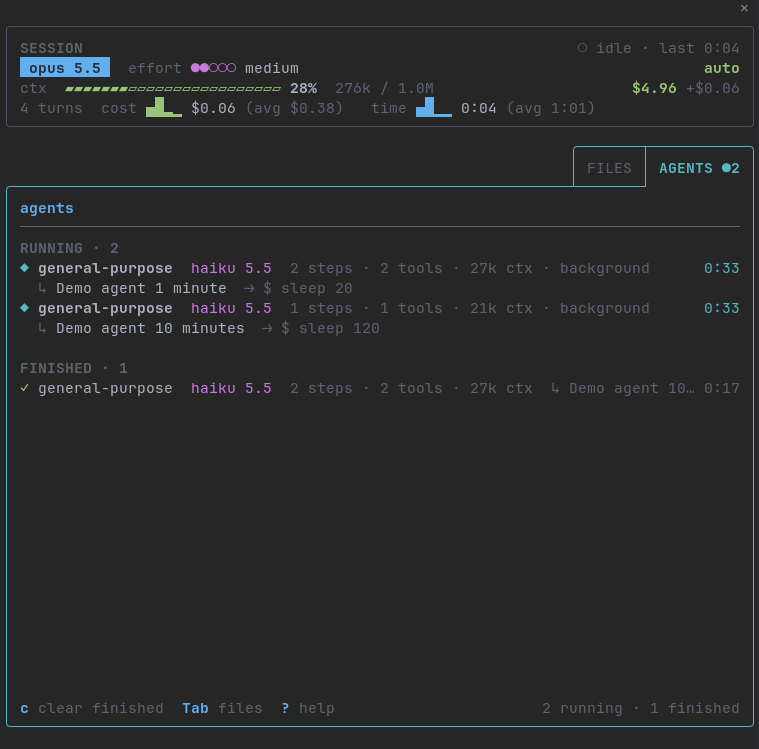
Running: each agent gets a card showing:
- its name, type and model
- steps, tool calls, the context it's using and a live timer
- its task (
↳) - the tool it's running right now (
⟶), such asRead middleware.tsor$ npm test
Finished: when an agent ends, it moves to the history below, newest first, on one line: name, type, model, steps, tools, context, task and how long it ran. The last 20 are kept. c clears them. ↑ ↓ and PgUp PgDn scroll the tab.
Files
The explorer starts at the session's working directory.
Mouse: click a folder to open it, or a file to preview it. Click the breadcrumb to go back. Rows highlight as you hover over them.
Keyboard: click the list once to give it the keyboard. Esc hands the keyboard back to the prompt.
| Key | In the list | In the preview |
|---|---|---|
↑ ↓ / k j | move | scroll |
PgUp PgDn | page | page (Space too) |
Home End | first / last | top / end |
g G | — | top / end |
⏎ → l | open | — |
⌫ ← h | parent folder (clears a filter first) | back to the list (q too) |
/ | filter by name as you type (⏎ or Tab to finish) | — |
f / ctrl+p | find a file anywhere (see below) | find a file anywhere |
. | show / hide dotfiles | — |
m | — | Markdown: rendered ↔ source |
t | only touched files: in a git repository, what git status reports changed; elsewhere, what Claude edited this session | — |
r | refresh | refresh the git marks |
d | — | diff against the last commit (d or ⌫ back to the file) |
| click, shift+click, drag | — | pick lines; @ then mentions just them (@src/a.ts#10-20) |
@ | insert @path into your prompt | insert @path (with the picked lines, if any) into your prompt |
e | open the file straight into edit mode | switch to edit mode |
Tab | agents tab | agents tab |
? | help | help |
Finding a file
f (or ctrl+p) opens a fuzzy finder over every file under the working directory: in a git repository, what git tracks plus untracked files that aren't ignored; elsewhere, a walk of the folders that skips node_modules, .git, build outputs and (unless dotfiles show) dotfolders, up to 20,000 files. Type letters of the path in order (midw finds src/auth/middleware.ts). A match in the file's own name ranks first, then letters in a row and the starts of words. The matched letters are highlighted.
↑ ↓ (or ctrl+n / ctrl+p) pick, ⏎ or a click opens the file with the list on its folder, ctrl+u clears the query, and ⌫ on an empty query closes the finder.
Editing a file
A label at the top right of the file box shows the mode: VIEW MODE (blue), EDIT MODE (yellow, and the box border turns yellow too) or READ ONLY. The shortcut is shown right beside it (e to edit / ctrl+e to view). Click the label to switch modes, or press e.
| Key, in edit mode | Does |
|---|---|
typing, Space, Tab | insert text. Tab inserts a tab if the file indents with tabs, otherwise two spaces. Pasted text goes in whole, newlines included. |
⏎ | new line, keeping the current line's indentation |
⌫ Del | delete before / after the cursor, joining lines at the edges |
↑ ↓ ← → | move. Left and right wrap between lines. |
Home End | start of the line's indentation (press again for column 1) / end of line |
PgUp PgDn, ctrl+Home ctrl+End | page / start and end of the file |
| click | put the cursor there |
ctrl+s | save (or run /claudashboard save) |
ctrl+z | undo, up to 100 steps per file |
ctrl+e | back to view mode. With unsaved changes, the first press warns and a second discards them. |
● modified shows next to the label until you save, and the counter shows Ln, Col. While you're editing, Esc hands the keyboard back to the prompt and keeps your edits. Click the file box to carry on.
Safety:
- Exact saves: a save writes the file in the shape it was read, keeping its line endings (LF or CRLF) and whether it ends with a newline.
- Read-only files: editing is off for any file the preview had to alter to show it, so a save can never write the altered text. That means binaries, files over 1 MB or 5,000 lines, files with control characters, minified lines over 10,000 characters, or mixed line endings. The label then reads READ ONLY, and the reason shows on the line above the code.
- Changes made elsewhere: if the file changed on disk after you opened it, for example because Claude edited it,
ctrl+swarns first and only a secondctrl+soverwrites it. Without unsaved edits, the open file simply reloads when Claude changes it.
Markdown and pictures
- Markdown files (
.md,.markdown,.mdx) open rendered, with headings, lists, emphasis, code blocks, tables and links. Pressmto switch to the source, which has the git gutter, andmagain to go back.eedits the source like any other file, and leaving the editor shows it rendered again. - PNG pictures show as real pixels in terminals that can draw them (Ghostty, kitty), at their own proportions. Other terminals show the file name in their place. The size in pixels shows at the bottom right.
- JPEG, GIF, WebP and BMP are converted to PNG on the fly if ImageMagick or ffmpeg is installed (
sudo apt install imagemagick). Without either, the pane tells you what to install.
Git changes
Every line of an open file has a gutter mark, in view mode and edit mode, layered the way git sees the file:
| Mark | Means |
|---|---|
yellow ▎ | edited here, not saved yet |
green ▎ | added since the index (not staged) |
blue ▎ | modified since the index (not staged) |
red ▁ | lines deleted just below this one |
purple ▎ | staged (git added), not yet committed |
The footer adds them up, for example ● 2 unsaved +3 ~2 −1 ✓4 staged. In the file list, each file shows its git status: M modified, S or A staged, U untracked, D deleted, ! conflict. Folders holding changes get a •.
While the pane is open, it refreshes every 3 seconds: files you edit, create or delete in another editor, and git add / commit run in a terminal, show up on their own. An open file reloads when it changes on disk, or warns you if you have unsaved edits.
Outside a git repository, the gutter compares the file with how it was when you first opened it, so lines you changed and saved still show (since opened). The marks refresh after each save, when you leave the file, after each Claude turn, and when you press r in the preview.
While a turn runs, a file Claude (or a subagent) is reading shows ◉ in purple and a file it's editing ✎ in yellow, bold, and so does every folder above it; the marks clear when the turn ends.
Touched files are marked ✎. In a git repository that means what git status reports changed right now, whoever changed it: a file you revert or commit is no longer touched. Outside git, it means the files Claude edited or created this session. New files appear automatically. The preview won't show binary files or files over 1 MB, and it shows at most the first 5,000 lines.
Commands
| Command | Does |
|---|---|
/claudashboard | open the hub |
/claudashboard close | close it |
/claudashboard files, /claudashboard agents | show that tab |
/claudashboard save | save the file being edited |
/claudashboard cd <path> | jump the explorer to a folder: relative to the working directory, or an absolute path inside it (.. is refused) |
/claudashboard reset | clear Claude's touched files (outside git) and the agents, running and finished, and move the explorer back to the root |
/claudashboard turns [on|off] | show or hide the session box's turns row (cost and length of the last turns); remembered across sessions |
/cdb is the short form: /cdb, /cdb cd src, /cdb turns and so on.
Configure
Open /config and find claudashboard, or set the values under pluginConfigs.claudashboard in your settings.
| Option | Default | |
|---|---|---|
palette | onedark | onedark uses fixed One Dark colours. theme follows your Claude Code theme. |
showHidden | false | Show dotfiles in the explorer by default. |
openOnStart | true | Open the pane when a session starts. |
Layout tips
- In fullscreen at 110 columns or wider, the pane docks beside the transcript. Otherwise it sits inline above the prompt, about 30 rows tall.
- Every row fits the pane's width: the file path folds its middle folders (
strackz › … › CODEOWNERS) and then shortens the name, the mode label switches toVIEW/EDIT/RO, and the line count sits at the bottom right. - When it gets cramped, close other panes.
/claudashboard closehides Claudashboard until you run/claudashboardagain.
Develop
claude plugin validate .     # manifest, marketplace and hooks, as the engine reads them
claude plugin test .         # unit and drawing tests
claude --plugin-dir .        # a session with your working copy loaded, hot-reloading on save
Start with AGENTS.md: the commands, the rules the engine enforces, and links to the architecture, the conventions and the decision records.
License
MIT © strackzdev
Details
- Author
- @strackzdev
- GitHub Stars
- 4
- Sub-category
- Context & Memory
- License
- MIT
- Surfaces
- terminal
- Added
- 1 months ago
- Last synced
- today
Weekly Mods Digest
Top new Claude Code mods and install commands, once a week. No fluff, unsubscribe anytime.