
claude-code-ide.el
Project-aware Emacs IDE integration for Claude Code — injects project context, active buffer, and LSP diagnostics into Claude automatically for smarter suggestions.
#+TITLE: Claude Code IDE for Emacs #+AUTHOR: Yoav Orot #+EMAIL: orot.yoav@gmail.com #+DESCRIPTION: Claude Code integration for Emacs #+KEYWORDS: emacs, claude, ai, code-assistant #+OPTIONS: toc:t num:nil
[[https://github.com/manzaltu/claude-code-ide.el/actions/workflows/test.yml][file:https://github.com/manzaltu/claude-code-ide.el/workflows/CI/badge.svg]] [[https://www.gnu.org/software/emacs/][file:https://img.shields.io/badge/GNU%20Emacs-28--30-blueviolet.svg]] [[https://www.gnu.org/licenses/gpl-3.0][file:https://img.shields.io/badge/License-GPL%20v3-blue.svg]]
- Overview
Claude Code IDE for Emacs provides native integration with Claude Code CLI through the Model Context Protocol (MCP). Unlike simple terminal wrappers, this package creates a bidirectional bridge between Claude and Emacs, enabling Claude to understand and leverage Emacs' powerful features—from LSP and project management to custom Elisp functions. This transforms Claude into a true Emacs-aware AI assistant that works within your existing workflow and can interact with your entire Emacs ecosystem.
** Features
- Automatic project detection and session management
- Terminal integration with full color support using =vterm=, =eat=, or =ghostel=
- MCP protocol implementation for IDE integration
- Tool support for file operations, editor state, and workspace info
- Extensible MCP tools server for accessing Emacs commands (xrefs, tree-sitter, project info, e.g.)
- Diagnostic integration with Flycheck and Flymake
- Advanced diff view with ediff integration (modify suggestions before applying)
- Tab-bar support for proper context switching
- Selection and buffer tracking for better context awareness
** Emacs Tool Integration
This package enables Claude Code to leverage the full power of Emacs through MCP tools integration. Claude can directly access and utilize Emacs capabilities including:
- Language Server Protocol (LSP) integration through xref commands for intelligent code navigation (eglot, lsp-mode and others)
- Tree-sitter for syntax tree analysis and understanding code structure at the AST level
- Imenu for structured symbol listing and navigation within files
- Project integration for project-aware operations
- Any Emacs command or function can be exposed as an MCP tool, allowing Claude to:
- Perform project-wide searches and refactoring
- Access specialized modes and their features
- Execute custom Elisp functions tailored to your workflow
This deep integration means Claude Code understands your project context and can leverage Emacs' extensive ecosystem to provide more intelligent and context-aware assistance.
** Screenshots
*** Active File Awareness
#+CAPTION: Claude Code automatically knows which file you're currently viewing in Emacs
#+html: 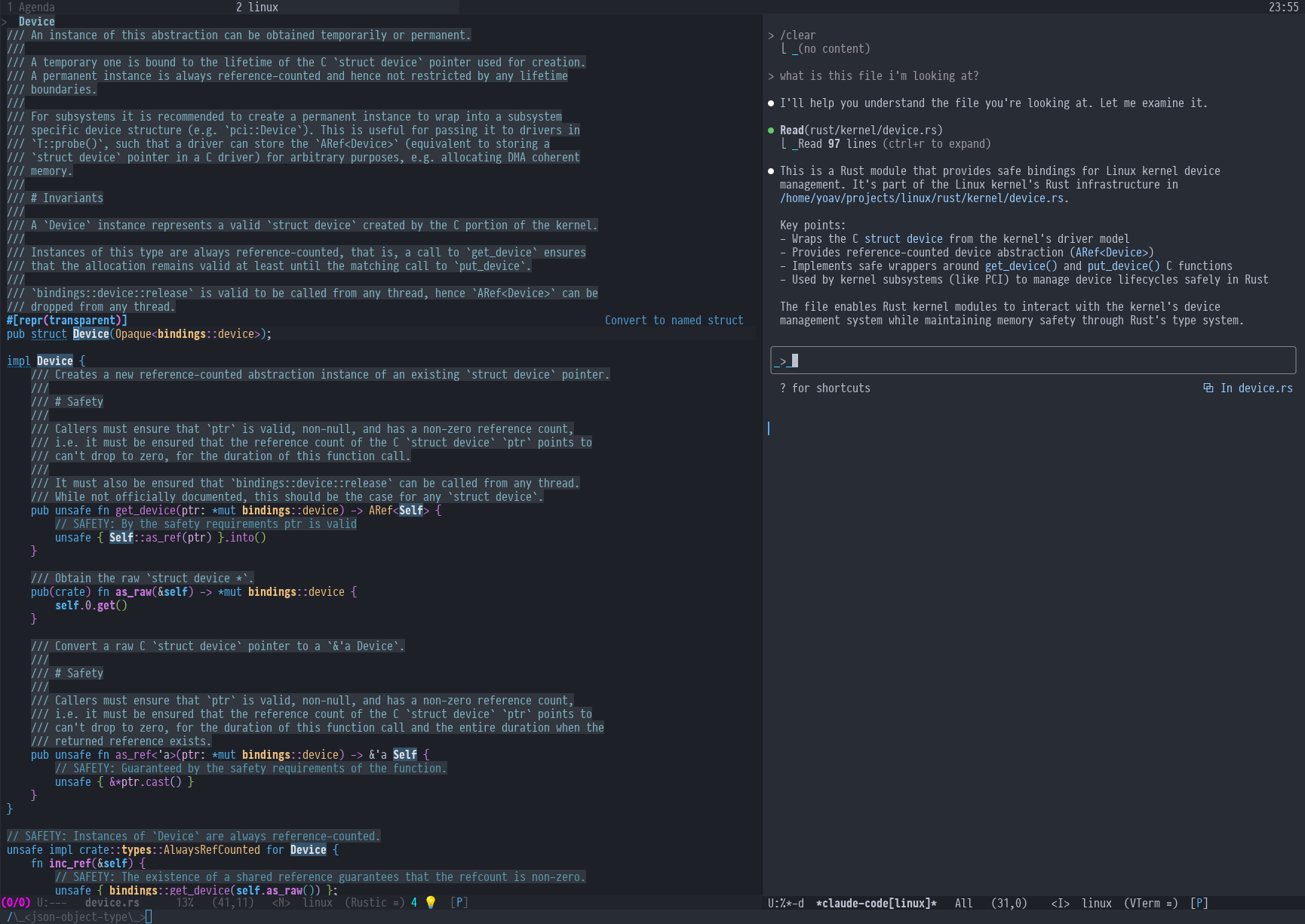 #+html:
Claude Code automatically knows which file you're currently viewing in Emacs
*** Code Selection Context
#+CAPTION: Claude Code can access and work with selected text in your buffers
#+html: 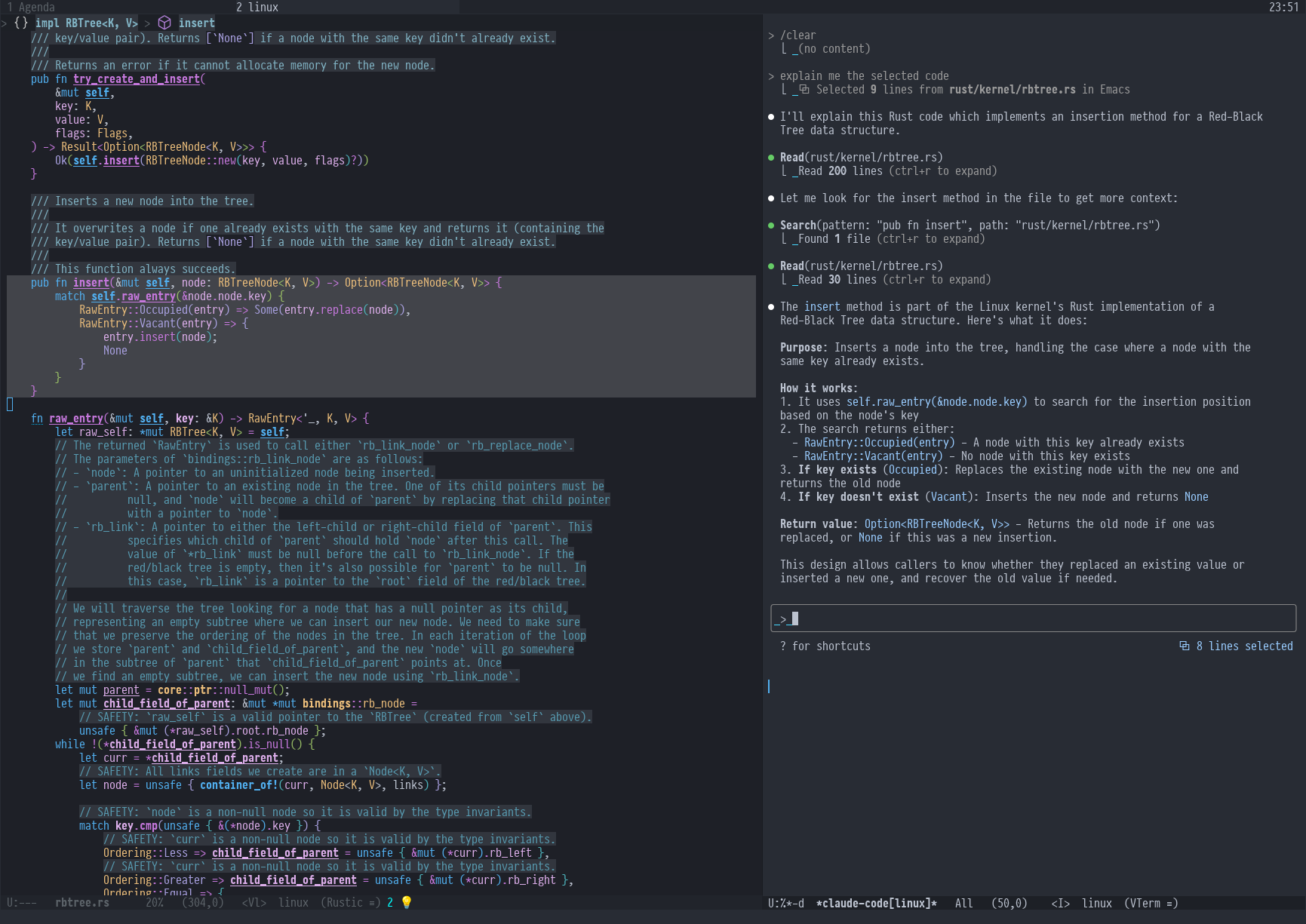 #+html:
Claude Code can access and work with selected text in your buffers
*** Advanced Diff View with Diagnostics
#+CAPTION: Integrated ediff view for code changes, with Claude Code able to directly access diagnostic data (errors, warnings, etc.) from opened files
#+html: 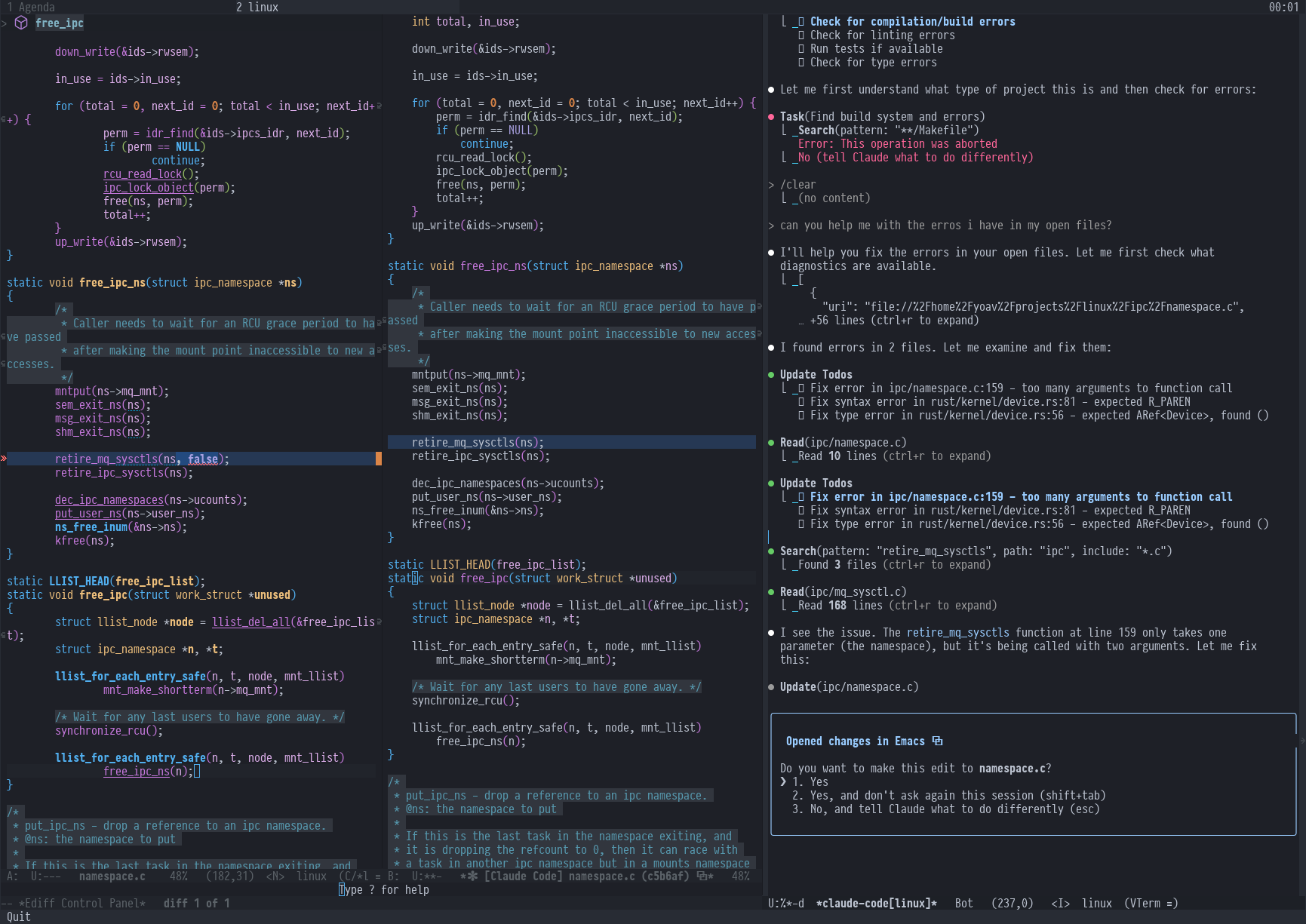 #+html:
Integrated ediff view for code changes, with Claude Code able to directly access diagnostic data (errors, warnings, etc.) from opened files
*** Automatic Text Mentions
#+CAPTION: Automatically mention and reference selected text in Claude conversations
#+html: 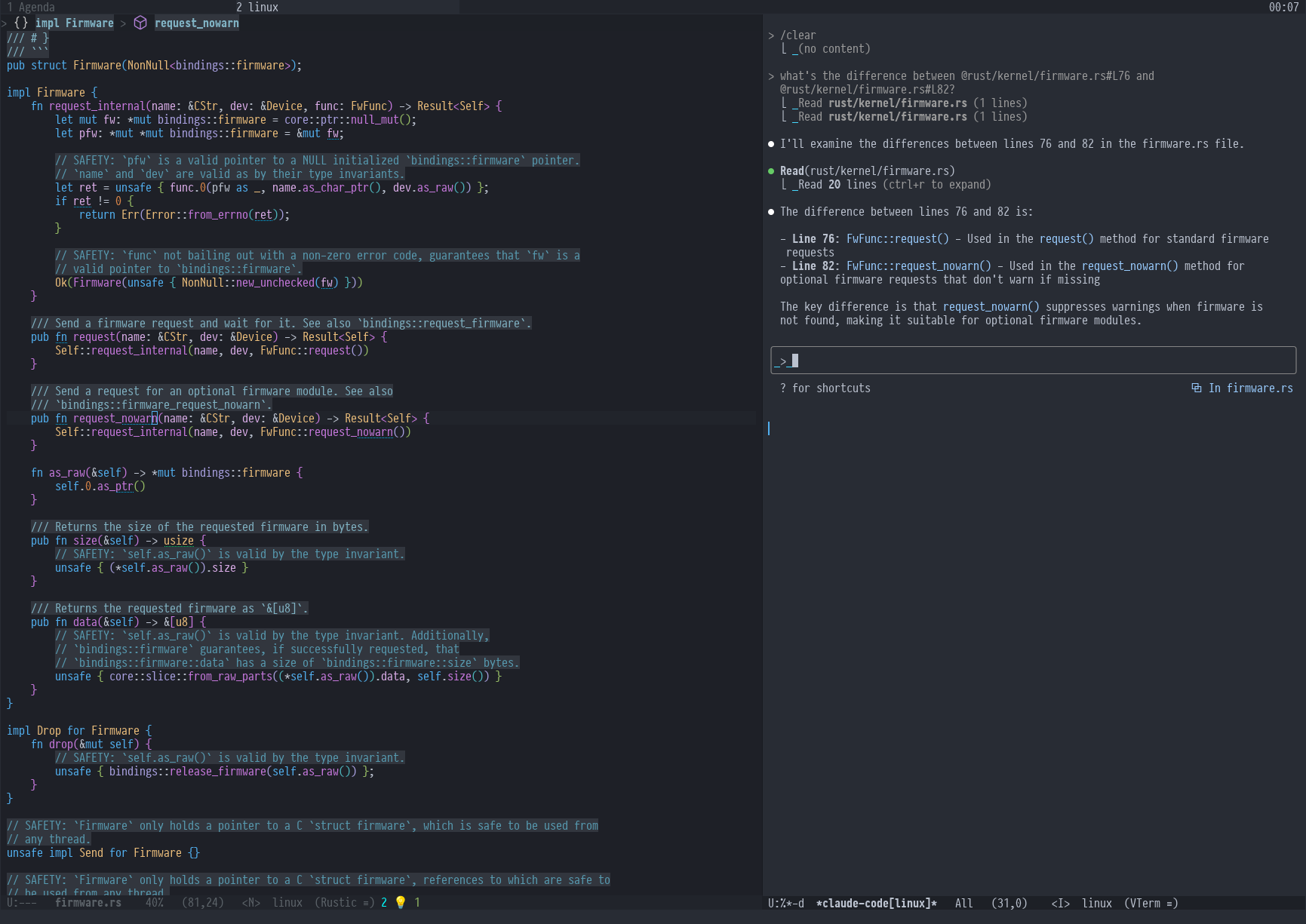 #+html:
Automatically mention and reference selected text in Claude conversations
*** Session Restoration
#+CAPTION: Resume previous Claude Code conversations with the --resume flag
#+html: 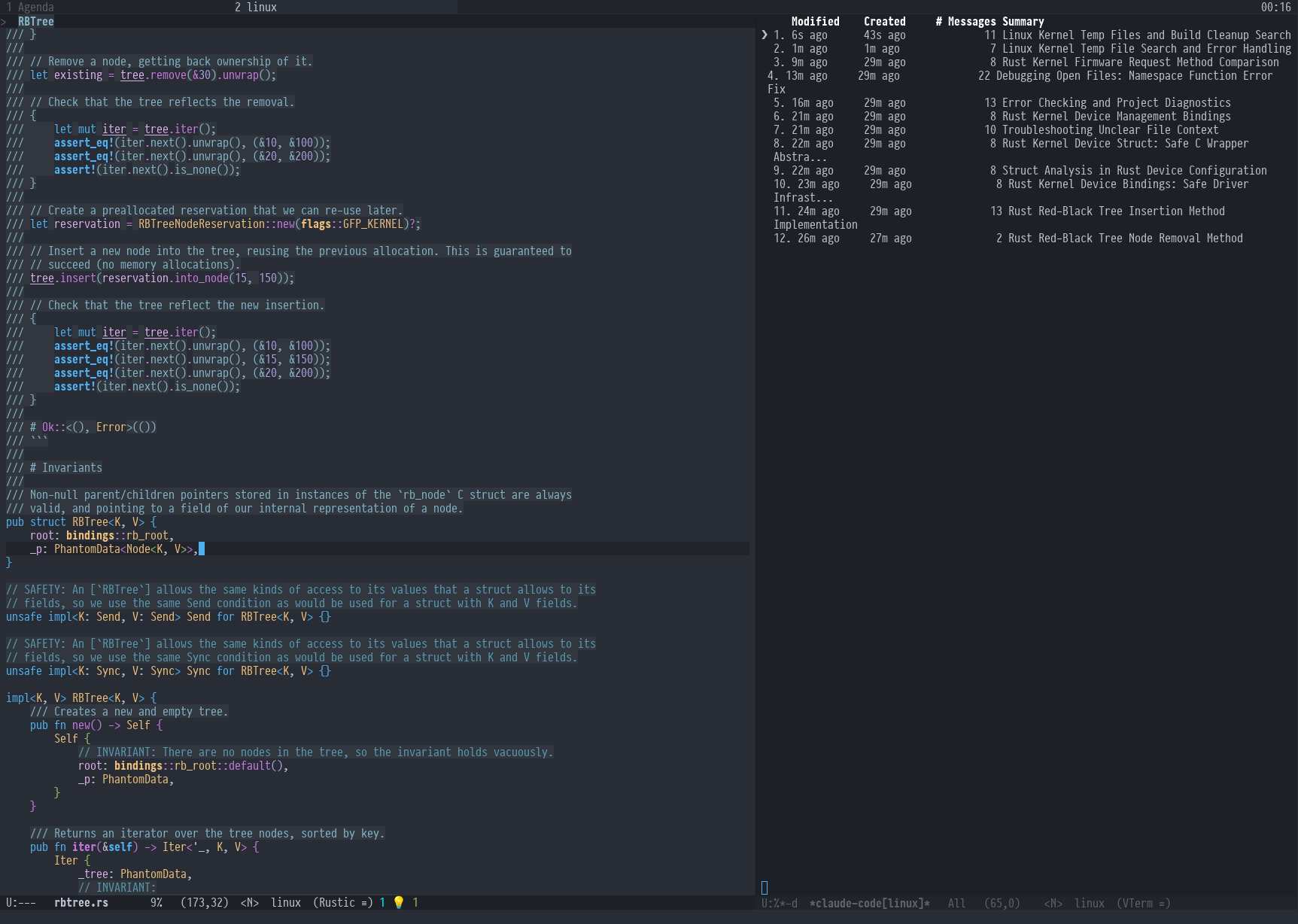 #+html:
Resume previous Claude Code conversations with the --resume flag
- Installation
** Prerequisites
- Emacs 28.1 or higher
- Claude Code CLI installed and available in PATH
- =vterm=, =eat=, or =ghostel= package (for terminal support)
** Installing Claude Code CLI
Follow the installation instructions at [[https://docs.anthropic.com/en/docs/claude-code][Claude Code Documentation]].
** Installing the Emacs Package
Currently, this package is in early development.
To install using =emacs-version= >= 30 and =use-package= with the =vc= binding:
#+begin_src elisp (use-package claude-code-ide :vc (:url "https://github.com/manzaltu/claude-code-ide.el" :rev :newest) :bind ("C-c C-'" . claude-code-ide-menu) ; Set your favorite keybinding :config (claude-code-ide-emacs-tools-setup)) ; Optionally enable Emacs MCP tools #+end_src
To install using =use-package= and [[https://github.com/raxod502/straight.el][straight.el]]:
#+begin_src emacs-lisp (use-package claude-code-ide :straight (:type git :host github :repo "manzaltu/claude-code-ide.el") :bind ("C-c C-'" . claude-code-ide-menu) ; Set your favorite keybinding :config (claude-code-ide-emacs-tools-setup)) ; Optionally enable Emacs MCP tools #+end_src
*** Doom Emacs
In =packages.el=:
#+begin_src emacs-lisp (package! claude-code-ide :recipe (:host github :repo "manzaltu/claude-code-ide.el")) #+end_src
In =config.el=: #+begin_src emacs-lisp (use-package! claude-code-ide :bind ("C-c C-'" . claude-code-ide-menu) ; Set your favorite keybinding :config (claude-code-ide-emacs-tools-setup)) ; Optionally enable Emacs MCP tools #+end_src
After saving the above, run: =doom sync= in the terminal.
- Usage
** Basic Commands
The easiest way to interact with Claude Code IDE is through the transient menu interface, which provides visual access to all available commands. Simply run =M-x claude-code-ide-menu= to open the interactive menu.
| Command | Description | |-----------------------------------------+---------------------------------------------------| | =M-x claude-code-ide-menu= | Open transient menu with all Claude Code commands | | =M-x claude-code-ide-emacs-tools-setup= | Set up built-in MCP tools (e.g. xref, project) | | =M-x claude-code-ide= | Start a new Claude Code instance for the project | | =M-x claude-code-ide-send-prompt= | Send prompt to Claude from minibuffer input | | =M-x claude-code-ide-continue= | Continue most recent conversation in new instance | | =M-x claude-code-ide-resume= | Resume a previous conversation in new instance | | =M-x claude-code-ide-stop= | Stop a Claude Code instance of the project | | =M-x claude-code-ide-stop-all= | Stop all instances in the project (=C-u=: global) | | =M-x claude-code-ide-rename-session= | Rename a Claude Code instance | | =M-x claude-code-ide-switch-to-buffer= | Switch to a Claude buffer of the project | | =M-x claude-code-ide-list-sessions= | List all active Claude Code instances and switch | | =M-x claude-code-ide-check-status= | Check if Claude Code CLI is installed and working | | =M-x claude-code-ide-insert-at-mentioned= | Send selected text to Claude prompt | | =M-x claude-code-ide-clear-selection= | Drop the file/selection shown in Claude's prompt | | =M-x claude-code-ide-send-escape= | Send escape key to Claude terminal | | =M-x claude-code-ide-insert-newline= | Insert newline in Claude prompt (sends \ + Enter) | | =M-x claude-code-ide-toggle= | Show/hide the project's Claude windows | | =M-x claude-code-ide-toggle-recent= | Show/hide all Claude windows globally | | =M-x claude-code-ide-show-all= | Show every instance of the project (=C-u=: global) | | =M-x claude-code-ide-show-debug= | Show the debug buffer with WebSocket messages | | =M-x claude-code-ide-clear-debug= | Clear the debug buffer |
Commands that target one instance (stop, switch, send-prompt, insert-at-mentioned, clear-selection, escape, newline) resolve their target automatically: the Claude terminal you are in, the project's only instance, or its only visible one; beyond that, send-type commands use the most recently used instance (echoing the choice) while =claude-code-ide-stop= asks. A prefix argument (=C-u=) always lets you pick the instance explicitly.
** Multiple Projects and Instances
Claude Code IDE automatically detects your project using Emacs' built-in =project.el=, and any project can run several Claude Code instances at the same time — for example one instance refactoring while another answers questions.
- The first instance of a project gets the plain buffer name =claude-code[project-name]=.
- Running =M-x claude-code-ide= again starts an /additional/ instance and prompts for an optional name: entering =refactor= yields =claude-code[project-name:refactor]=, while empty input auto-numbers (=claude-code[project-name:2]=, =claude-code[project-name:3]=, ...). Auto numbers are positional and get reused after an instance exits.
- =M-x claude-code-ide-rename-session= renames an instance later; names show up in buffer names, session lists and prompts.
- Each instance runs its own MCP server, so cursor/selection context is shared with /every/ instance of the project, while explicit actions (prompts, at-mentions, diffs) target exactly one.
- Use =claude-code-ide-list-sessions= to see all instances across all projects and switch between them.
Note for =claude-code-ide-continue=: starting a second continued instance in the same directory forks the same "most recent" conversation — that is CLI behavior.
** Editor Context
Every instance of a project is told which file you are looking at and which text you have selected. The Claude prompt shows this as an =⧉ In file.el= or =⧉ 3 lines selected= label, and the prompt you submit next carries a short reminder ("The user opened the file … in the IDE" or the selected lines). The file's content itself is not sent.
- =M-x claude-code-ide-clear-selection= (=x= in the menu, =C-c C-x= in the Claude terminal) drops that context from one instance, like the =x= next to the file name in the VS Code extension. The dismissed file stays out of the prompt while you move around in it; selecting a region or visiting another file shares context again.
- Set
claude-code-ide-share-opened-fileto =nil= (or toggle it under =o= in the configuration menu) to report only selected regions. The file you are in is then never mentioned; a region is shared while it is active and dropped when it is deactivated.
** Window Management
- Each instance owns its own side-window slot, so several instances can be visible side by side along =claude-code-ide-window-side=; instances of the same project are grouped next to each other. Emacs' =window-sides-slots= controls how many side windows fit per side; heavy users can e.g. =(setq window-sides-slots '(nil nil 3 nil))= for three windows on the right side
- =claude-code-ide-toggle= works as a project panel: it hides all of the project's visible Claude windows (remembering the set) or restores them; with =C-u= it toggles a single chosen instance
- With =tab-bar-mode=, tabs keep independent window layouts, and the toggles follow that model: hiding and restoring apply to the current tab only, and each tab remembers its own sets. Newly created tabs never inherit Claude windows from the cloned layout — use =claude-code-ide-show-all= or the toggles to summon instances into a fresh tab
- The window can be closed with standard Emacs window commands (=C-x 0=) without stopping Claude
- Use =claude-code-ide-toggle-recent= to hide/show all Claude windows from anywhere, regardless of your current project context. This is useful when you're outside a project directory but want to quickly hide/show Claude
** Diff Viewing with Ediff
When =claude-code-ide-use-ide-diff= is enabled (default), Claude's code suggestions are displayed using Emacs' powerful =ediff= interface. This provides two key advantages:
- Visual diff comparison - See exactly what Claude wants to change with side-by-side or unified diff views
- Interactive editing - You can modify Claude's suggestions before applying them
*** How to use ediff:
- When Claude suggests code changes, =ediff= opens automatically
- The ediff control buffer becomes active (a small window with ediff commands)
- Buffer A shows the current code, Buffer B shows Claude's suggestion
- You can modify Buffer B to refine Claude's proposed changes
- Press =q= in the ediff control buffer to quit
- When prompted, choose whether to accept the changes (=y= or =n=)
- If you accept (=y=), any changes from Buffer B will be sent back to Claude to be applied on the original file
This allows you to refine Claude's suggestions before they're applied, ensuring the final code meets your exact requirements.
** Configuration
*** Configuration Variables
| Variable | Description | Default |
|-----------------------------------------------+---------------------------------------------+--------------------------------------|
| claude-code-ide-cli-path | Path to Claude Code CLI | "claude" |
| claude-code-ide-buffer-name-function | Function for buffer naming | claude-code-ide--default-buffer-name |
| claude-code-ide-cli-debug | Enable CLI debug mode (-d flag) | nil |
| claude-code-ide-cli-extra-flags | Additional CLI flags (e.g. "--model") | "" |
| claude-code-ide-debug | Enable debug logging | nil |
| claude-code-ide-terminal-backend | Terminal backend (vterm/eat/ghostel) | 'vterm |
| claude-code-ide-show-backend-recommendation | Suggest ghostel once on vterm/eat | t |
| claude-code-ide-vterm-anti-flicker | Enable vterm flicker reduction | t |
| claude-code-ide-vterm-render-delay | vterm render batching delay (seconds) | 0.005 |
| claude-code-ide-terminal-initialization-delay | Initialization delay for terminals | 0.1 |
| claude-code-ide-log-with-context | Include session context in log messages | t |
| claude-code-ide-debug-buffer | Buffer name for debug output | "claude-code-ide-debug" |
| claude-code-ide-use-side-window | Use side window vs regular buffer | t |
| claude-code-ide-window-side | Side for Claude window | 'right |
| claude-code-ide-window-width | Body width for side windows (left/right) | 100 |
| claude-code-ide-window-height | Height for side windows (top/bottom) | 20 |
| claude-code-ide-focus-on-open | Focus Claude window when opened | t |
| claude-code-ide-focus-claude-after-ediff | Focus Claude window after opening ediff | t |
| claude-code-ide-show-claude-window-in-ediff | Show Claude window during ediff | t |
| claude-code-ide-use-ide-diff | Use IDE diff viewer instead of terminal | t |
| claude-code-ide-switch-tab-on-ediff | Switch to Claude's tab when opening ediff | t |
| claude-code-ide-system-prompt | Custom system prompt to append | nil |
| claude-code-ide-enable-mcp-server | Enable MCP tools server | nil |
| claude-code-ide-mcp-server-port | Port for MCP tools server | nil (auto-select) |
| claude-code-ide-mcp-server-tools | Alist of exposed Emacs functions | nil |
| claude-code-ide-diagnostics-backend | Diagnostics backend (auto/flycheck/flymake) | 'auto |
| claude-code-ide-no-flicker | Enable flicker-free terminal renderer | nil |
| claude-code-ide-prevent-reflow-glitch | Prevent terminal reflow glitch (bug #1422) | t |
| claude-code-ide-enable-execute-code | Allow model to evaluate Elisp in Emacs | t |
| claude-code-ide-share-opened-file | Report the open file even without a region | t |
*** Side Window Configuration
Claude Code buffers open in a side window by default. You can customize the placement:
#+begin_src emacs-lisp ;; Open Claude on the left side (setq claude-code-ide-window-side 'left)
;; Open Claude at the bottom with custom height (setq claude-code-ide-window-side 'bottom claude-code-ide-window-height 30)
;; Open Claude on the right with custom width (setq claude-code-ide-window-side 'right claude-code-ide-window-width 100)
;; Don't automatically focus the Claude window (setq claude-code-ide-focus-on-open nil)
;; Keep focus on ediff control window when opening diffs (setq claude-code-ide-focus-claude-after-ediff nil)
;; Hide Claude window during ediff for more screen space (setq claude-code-ide-show-claude-window-in-ediff nil)
;; Disable IDE diff viewer to show diffs in terminal instead (setq claude-code-ide-use-ide-diff nil) #+end_src
Or, if you'd prefer to use a regular window:
#+begin_src emacs-lisp ;; Use regular window instead of side window (setq claude-code-ide-use-side-window nil) #+end_src
*** Terminal Backend Configuration
Claude Code IDE supports =vterm=, =eat=, and =ghostel= as terminal backends, with =vterm= used by default.
Note: Of the available backends, =ghostel= delivers the smoothest experience: its rendering is largely free of the flickering, scrolling glitches, and display artifacts that =vterm= and =eat= are prone to, so if it is available in your setup it is the recommended choice.
To switch to another backend:
#+begin_src emacs-lisp ;; Use eat instead of vterm (setq claude-code-ide-terminal-backend 'eat)
;; Use ghostel instead of vterm (setq claude-code-ide-terminal-backend 'ghostel)
;; Or switch back to vterm (default) (setq claude-code-ide-terminal-backend 'vterm) #+end_src
The =eat= backend is a pure Elisp terminal emulator that may work better in some environments where =vterm= compilation is problematic. The =ghostel= backend uses Ghostel's terminal integration and requires a version that provides =ghostel-exec=. All backends provide full terminal functionality including color support and special key handling.
**** Inline Renderer (Recommended)
Claude Code can render its interface either inline or in fullscreen mode, the latter drawing on the terminal's alternate screen buffer the way =vim= or =htop= do. Inside Emacs — especially with the recommended =ghostel= backend — the inline renderer is the better choice: the transcript lives in the terminal buffer as ordinary text, so you can scroll through the whole conversation and search it with isearch (=C-s= / =C-r=) like in any other buffer. With fullscreen rendering, only the currently visible screen exists in the buffer, and scrolling and searching have to go through Claude Code's own transcript view.
To make sure Claude Code always uses the inline renderer, set =tui= to =default= in its user settings (=~/.claude/settings.json=):
#+begin_src json { "tui": "default" } #+end_src
Running =/tui default= inside a session switches the renderer immediately and saves the same setting.
Relatedly, the =claude-code-ide-no-flicker= option sets =CLAUDE_CODE_NO_FLICKER=1=, which enables the fullscreen renderer as a workaround for flickering in =vterm= and =eat=. With the =ghostel= backend flickering is not an issue, so it is best left at its default =nil=.
**** vterm Rendering Optimization
Claude Code IDE includes intelligent flicker reduction for vterm terminals to provide smoother visual output:
#+begin_src emacs-lisp ;; Enable/disable vterm anti-flicker optimization (enabled by default) (setq claude-code-ide-vterm-anti-flicker t)
;; Adjust the render delay for batching updates (default is 0.005 seconds) (setq claude-code-ide-vterm-render-delay 0.01) ; Increase for smoother but less responsive #+end_src
This optimization detects rapid terminal redraw sequences (like when Claude expands text areas) and batches them for smoother rendering. The 5ms default delay provides optimal visual quality with imperceptible latency.
**** Terminal Initialization Delay
Claude Code IDE includes a brief initialization delay when launching terminals to ensure proper layout rendering:
#+begin_src emacs-lisp ;; Adjust the terminal initialization delay (default is 0.1 seconds) (setq claude-code-ide-terminal-initialization-delay 0.15)
;; Or disable it entirely (may cause visual glitches) (setq claude-code-ide-terminal-initialization-delay 0) #+end_src
This delay prevents display artifacts such as misaligned prompts and incorrect cursor positioning that can occur when terminal emulation is initializing. The default 100ms delay is imperceptible but ensures reliable terminal startup.
**** Terminal Keybindings
Claude Code IDE adds custom keybindings to the terminal for easier interaction:
| Keybinding | Command | Description | |--------------+-----------------------------------+---------------------------------------------| | =M-RET= | =claude-code-ide-insert-newline= | Insert a newline in the prompt | | =C-= | =claude-code-ide-send-escape= | Send escape key to cancel operations | | =C-c C-x= | =claude-code-ide-clear-selection= | Drop the file/selection shown in the prompt |
These keybindings are automatically set up for =vterm=, =eat=, and =ghostel= backends and only apply within Claude Code terminal buffers.
**** C-g Opening an External Editor (ghostel)
The =ghostel= backend forwards =C-g= to the terminal, where Claude Code binds =Ctrl+G= to its "edit prompt in external editor" action — so =C-g= opens a prompt-editing buffer instead of quitting. To move the action to another key, rebind it in =~/.claude/keybindings.json= (applies to newly started sessions):
#+begin_src json { "$schema": "https://www.schemastore.org/claude-code-keybindings.json", "bindings": [ { "context": "Chat", "bindings": { "ctrl+g": null, "alt+e": "chat:externalEditor" } } ] } #+end_src
=alt+e= is a good replacement because ghostel forwards it to the terminal, unlike the action's other default binding =Ctrl+X Ctrl+E= (=C-x= is kept by Emacs).
**** Terminal Reflow Glitch Prevention (Temporary)
Claude Code IDE includes a temporary workaround for a known Claude Code bug ([[https://github.com/anthropics/claude-code/issues/1422][#1422]]) where terminal reflows during window resizes can cause uncontrollable scrolling. This workaround is enabled by default but can be disabled if needed:
#+begin_src emacs-lisp ;; Disable the terminal reflow glitch prevention (not recommended until bug is fixed) (setq claude-code-ide-prevent-reflow-glitch nil) #+end_src
The workaround will be removed once the upstream bug is fixed.
*** Diagnostics Configuration
Claude Code IDE supports both Flycheck and Flymake for code diagnostics. By default, it will automatically detect which one is active:
#+begin_src emacs-lisp ;; Let Claude Code automatically detect the active diagnostics backend (setq claude-code-ide-diagnostics-backend 'auto) ; default
;; Or force a specific backend (setq claude-code-ide-diagnostics-backend 'flycheck) (setq claude-code-ide-diagnostics-backend 'flymake) #+end_src
*** Elisp Code Execution
Claude Code can evaluate Elisp expressions directly in your running Emacs session via the =executeCode= MCP tool. This is enabled by default.
To disable it:
#+begin_src emacs-lisp (setq claude-code-ide-enable-execute-code nil) #+end_src
*** Custom Buffer Naming
You can customize how Claude Code buffers are named. The function receives the project directory and, optionally, the instance name (nil for the first, unnamed instance of a project):
#+begin_src emacs-lisp (setq claude-code-ide-buffer-name-function (lambda (directory &optional instance-name) (let ((project (if directory (file-name-nondirectory (directory-file-name directory)) "Global"))) (if instance-name (format "Claude:%s/%s" project instance-name) (format "Claude:%s" project))))) #+end_src
Existing single-argument functions keep working: they are called with just the directory, and for named instances the name is spliced into the result (a =...]= suffix becomes =...:NAME]=) or appended as ==.
*** Custom CLI Flags
You can pass additional flags to the Claude Code CLI:
#+begin_src emacs-lisp ;; Use a specific model (setq claude-code-ide-cli-extra-flags "--model opus")
;; Pass multiple flags (setq claude-code-ide-cli-extra-flags "--model opus --no-cache")
;; Flags are added to all Claude Code sessions #+end_src
Note: These flags are appended to the Claude command after any built-in flags like =-d= (debug) or =-r= (resume).
*** Custom System Prompt
You can append a custom system prompt to Claude's default prompt, allowing you to customize Claude's behavior for specific projects or contexts:
#+begin_src emacs-lisp ;; Set a custom system prompt (setq claude-code-ide-system-prompt "You are an expert in Elisp and Emacs development.")
;; Or configure it per-project using dir-locals.el ;; In .dir-locals.el: ((nil . ((claude-code-ide-system-prompt . "Focus on functional programming patterns and avoid mutations."))))
;; Set via the transient menu: M-x claude-code-ide-menu → Configuration → Set system prompt #+end_src
When set, this adds the =--append-system-prompt= flag to the Claude command. Set to =nil= to disable (default).
*** Debugging
**** Claude CLI Debug Mode
To enable debug mode for Claude Code CLI (passes the =-d= flag):
#+begin_src emacs-lisp (setq claude-code-ide-cli-debug t) #+end_src
**** Emacs Debug Logging
To enable debug logging within Emacs (logs WebSocket messages and JSON-RPC communication):
#+begin_src emacs-lisp (setq claude-code-ide-debug t) #+end_src
Then view debug logs with:
- =M-x claude-code-ide-show-debug= - Show the debug buffer
- =M-x claude-code-ide-clear-debug= - Clear the debug buffer
The debug buffer shows:
- WebSocket connection events
- All JSON-RPC messages (requests/responses)
- Error messages and diagnostics
- General debug information with session context
** Multiple Claude Code Instances on One Project
Running several instances on the same checkout is supported natively: just run =M-x claude-code-ide= again and give the new instance an optional name (see [[*Multiple Projects and Instances][Multiple Projects and Instances]]). All instances share the working tree, so this fits collaborating agents — one implementing, one reviewing, one answering questions.
When the instances should /not/ share a working tree — e.g. parallel work on different branches with conflicting edits — git worktrees remain the right tool:
#+begin_src bash
Create a new worktree for a feature branch
git worktree add ../myproject-worktree feature-branch #+end_src
#+begin_src elisp ;; Start Claude Code in the main project find-file /path/to/myproject M-x claude-code-ide
;; Start another Claude Code instance in the worktree find-file /path/to/myproject-worktree M-x claude-code-ide #+end_src
Each worktree is treated as a separate project by =project.el=, giving fully independent sessions with their own buffers (e.g., =claude-code[myproject]= and =claude-code[myproject-worktree]=).
** Emacs MCP Tools
Claude Code IDE includes built-in MCP tools that expose Emacs functionality to Claude, enabling powerful code navigation and analysis capabilities:
*** Built-in Tools
- =xref-find-references= - Find all references to a symbol throughout the project
- =xref-find-apropos= - Find symbols matching a pattern across the entire project
- =treesit-info= - Get tree-sitter syntax tree information for deep code structure analysis
- =imenu-list-symbols= - List all symbols (functions, classes, variables) in a file using imenu
- =project-info= - Get information about the current project (directory, files, etc.)
*** Enabling MCP Tools
To enable these tools, add to your configuration:
#+begin_src emacs-lisp ;; Set up the built-in Emacs tools (claude-code-ide-emacs-tools-setup) #+end_src
Once enabled, Claude can use these tools to navigate your codebase. For example:
- "Find the definition of function foo"
- "Show me all places where this variable is used"
- "What type of AST node is under the cursor?"
- "Analyze the parse tree of this entire file"
- "List all functions and variables in this file"
- "How many files are in this project?"
** Creating Custom MCP Tools
You can expose your own Emacs functions to Claude through the MCP tools system. This allows Claude to interact with specialized Emacs features, custom commands, or domain-specific functionality.
*** Tool Definition Format
Define tools using the =claude-code-ide-make-tool= function:
#+begin_src emacs-lisp (claude-code-ide-make-tool :function #'function-name ; The Emacs function to call :name "tool_name" ; Name for Claude to use (snake_case recommended) :description "..." ; Human-readable description :args '((:name "param1" ; List of argument specifications :type string ; Type: string, number, integer, boolean, etc. :description "..." ; What this parameter does :optional t))) ; Optional parameters marked with :optional t #+end_src
Available argument types: =string=, =number=, =integer=, =boolean=, =array=, =object=, =null=
*** Context-Aware Tool Example
#+begin_src emacs-lisp ;; Define a context-aware function that operates in the session's project (defun my-project-grep (pattern) "Search for PATTERN in the current session's project." (claude-code-ide-mcp-server-with-session-context nil ;; This executes with the session's project directory as default-directory (let* ((project-dir default-directory) (results (shell-command-to-string (format "rg -n '%s' %s" pattern project-dir)))) results)))
;; Define and register the tool (automatically added to claude-code-ide-mcp-server-tools) (claude-code-ide-make-tool :function #'my-project-grep :name "my_project_grep" :description "Search for pattern in project files" :args '((:name "pattern" :type string :description "Pattern to search for")))
;; Enable Emacs tool MCP server (claude-code-ide-emacs-tools-setup) #+end_src
The =claude-code-ide-mcp-server-with-session-context= macro ensures your tool executes in the correct project context.
- License
This project is licensed under the GNU General Public License v3.0 or later. See the LICENSE file for details.
- Trademark Notice
Claude® is a registered trademark of Anthropic, PBC. Claude Code is an application developed by Anthropic, PBC.
- Related Projects
- [[https://docs.anthropic.com/en/docs/claude-code][Claude Code CLI]]
- [[https://github.com/anthropics/claude-code][Claude Code VS Code Extension]]
- [[https://github.com/coder/claudecode.nvim][claudecode.nvim]] - Neovim integration
More Ide-plugins

Crystal
Visual multi-agent Claude Code client by Stravu — run parallel Claude Code sessions side by side, compare outputs with a diff viewer, and merge the best parts.
claudecode.nvim (Coder)
Official Coder Neovim plugin for Claude Code — native nvim integration with terminal splits, file context injection, selection-aware prompts, and LSP integration.
Claude Code Security Review Action
Official Anthropic GitHub Action for automated security review — Claude scans every PR for vulnerabilities, secrets exposure, and OWASP top 10 issues.