
Claude Squad
Multi-agent tmux orchestrator — spawn N isolated Claude Code sessions in parallel, each in its own git worktree, then merge the best results back to main.
Claude Squad 

Claude Squad is a terminal app that manages multiple Claude Code, Codex, Gemini (and other local agents including Aider) in separate workspaces, allowing you to work on multiple tasks simultaneously.
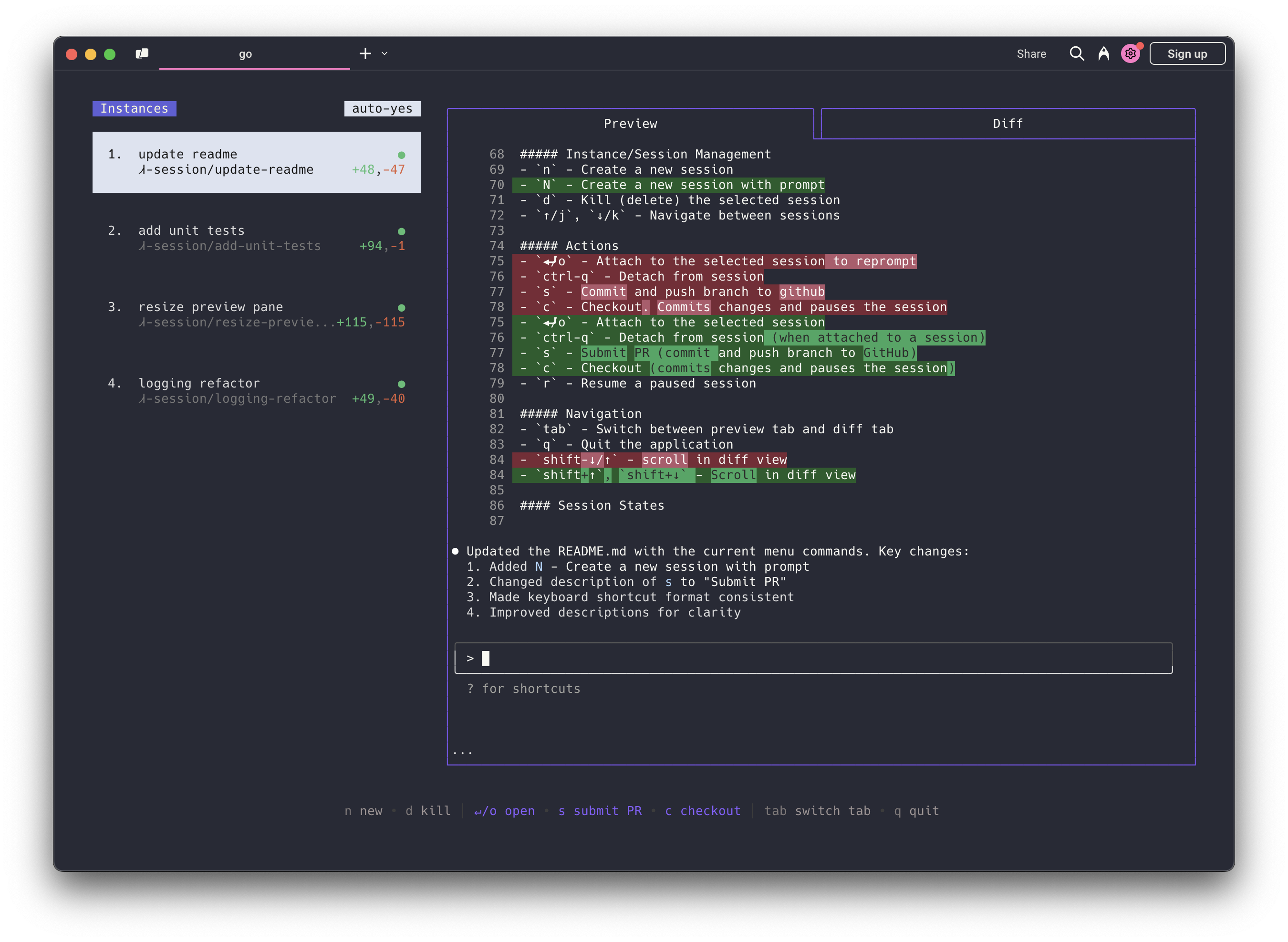
Highlights
- Complete tasks in the background (including yolo / auto-accept mode!)
- Manage instances and tasks in one terminal window
- Review changes before applying them, checkout changes before pushing them
- Each task gets its own isolated git workspace, so no conflicts
https://github.com/user-attachments/assets/aef18253-e58f-4525-9032-f5a3d66c975a
Installation
Both Homebrew and manual installation will install Claude Squad as cs on your system.
Homebrew
brew install claude-squad
ln -s "$(brew --prefix)/bin/claude-squad" "$(brew --prefix)/bin/cs"
Manual
Claude Squad can also be installed by running the following command:
curl -fsSL https://raw.githubusercontent.com/smtg-ai/claude-squad/main/install.sh | bash
This puts the cs binary in ~/.local/bin.
To use a custom name for the binary:
curl -fsSL https://raw.githubusercontent.com/smtg-ai/claude-squad/main/install.sh | bash -s -- --name <your-binary-name>
Prerequisites
Usage
Usage:
  cs [flags]
  cs [command]

Available Commands:
  completion  Generate the autocompletion script for the specified shell
  debug       Print debug information like config paths
  help        Help about any command
  reset       Reset all stored instances
  version     Print the version number of claude-squad

Flags:
  -y, --autoyes          [experimental] If enabled, all instances will automatically accept prompts for claude code & aider
  -h, --help             help for claude-squad
  -p, --program string   Program to run in new instances (e.g. 'aider --model ollama_chat/gemma3:1b')
Run the application with:
cs
NOTE: The default program is claude and we recommend using the latest version.
Using Claude Squad with other AI assistants:
- For Codex: Set your API key with
export OPENAI_API_KEY=<your_key> - Launch with specific assistants:
- Codex:
cs -p "codex" - Aider:
cs -p "aider ..." - Gemini:
cs -p "gemini"
- Codex:
- Make this the default, by modifying the config file (locate with
cs debug)
Menu
The menu at the bottom of the screen shows available commands:
Instance/Session Management
n- Create a new sessionN- Create a new session with a promptD- Kill (delete) the selected session↑/j,↓/k- Navigate between sessions
Actions
↵/o- Attach to the selected session to repromptctrl-q- Detach from sessions- Commit and push branch to githubc- Checkout. Commits changes and pauses the sessionr- Resume a paused session?- Show help menu
Navigation
tab- Switch between preview tab and diff tabq- Quit the applicationshift-↓/↑- scroll in diff view
Configuration
Claude Squad stores its configuration in ~/.claude-squad/config.json. You can find the exact path by running cs debug.
Profiles
Profiles let you define multiple named program configurations and switch between them when creating a new session. When more than one profile is defined, the session creation overlay shows a profile picker that you can navigate with ←/→.
To configure profiles, add a profiles array to your config file and set default_program to the name of the profile to select by default:
{
  "default_program": "claude",
  "profiles": [
    { "name": "claude", "program": "claude" },
    { "name": "codex", "program": "codex" },
    { "name": "aider", "program": "aider --model ollama_chat/gemma3:1b" }
  ]
}
Each profile has two fields:
| Field | Description |
|---|---|
name | Display name shown in the profile picker |
program | Shell command used to launch the agent for that profile |
If no profiles are defined, Claude Squad uses default_program directly as the launch command (the default is claude).
FAQs
Failed to start new session
If you get an error like failed to start new session: timed out waiting for tmux session, update the
underlying program (ex. claude) to the latest version.
How It Works
- tmux to create isolated terminal sessions for each agent
- git worktrees to isolate codebases so each session works on its own branch
- A simple TUI interface for easy navigation and management
License
Star History
More Harnesss
claude-flow
The #1 AI automation framework — 87.8% SWE-bench verified. An advanced multi-agent orchestration system for Claude Code with enterprise-grade agentic capabilities.
claude-simone
Structured project management harness for Claude Code — define milestones and sprints in markdown, then run execution loops that drive Claude through each task.
Awesome Claude Code Plugins
A community-curated directory of the best Claude Code plugins, harnesses, and tools — organized by use case with install instructions and community ratings.