
Claude Code Config TUI
joeyism's terminal UI for managing Claude Code settings — browse MCP servers, toggle hooks, edit CLAUDE.md, and manage permissions from an interactive TUI.
Claude Code Config
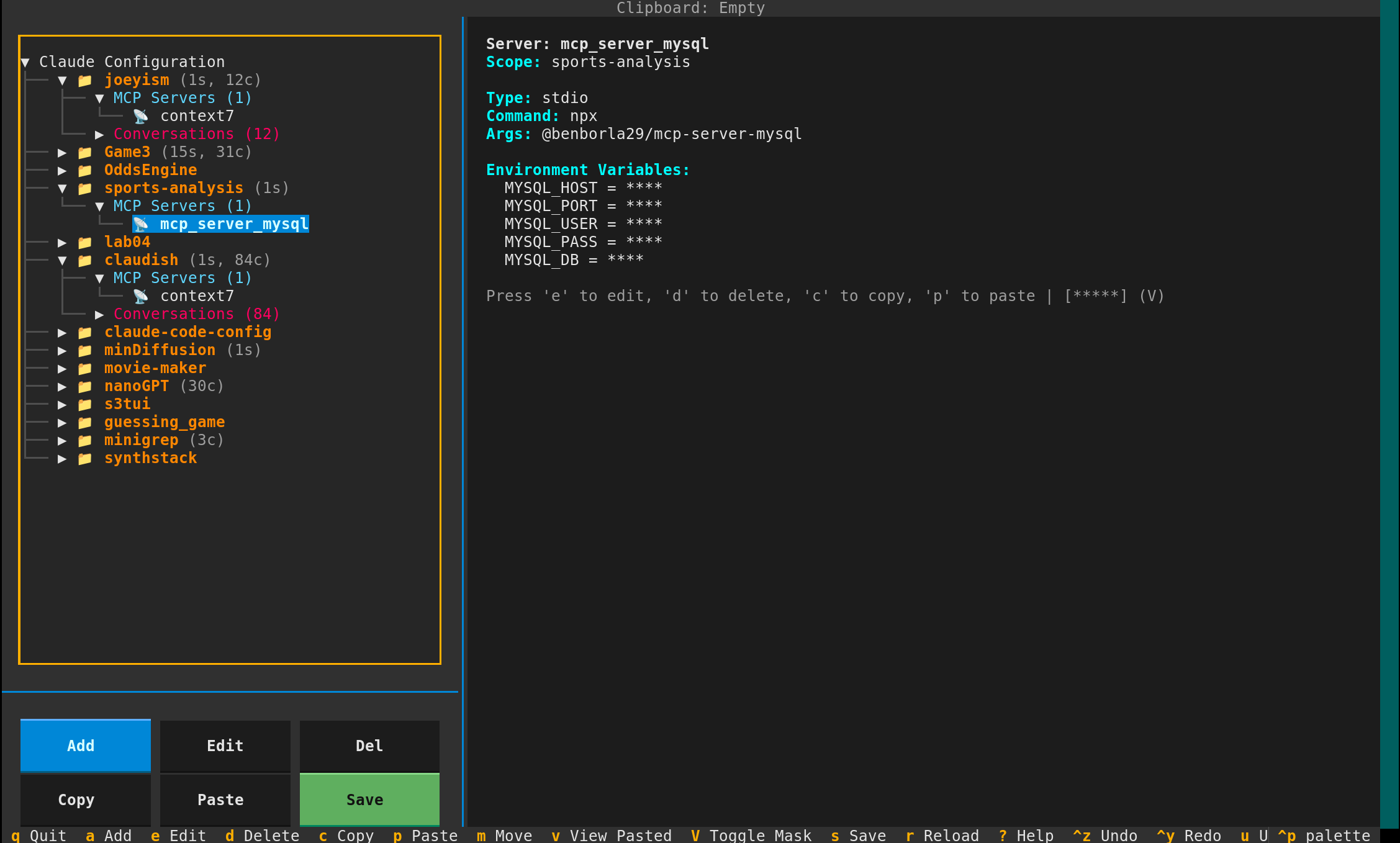
A modern Terminal User Interface (TUI) application for managing Claude Code configuration files (~/.claude.json). Simplify the management of MCP servers, projects, and conversations with an intuitive hierarchical interface.
Features
MCP Server Management
- Hierarchical View: Browse global and project-level MCP servers in a tree structure
- Add, Edit, Delete: Full CRUD operations for MCP server configurations
- Copy Servers: Quickly duplicate server configurations with visual clipboard tracking
- Move Servers: Move servers between global scope and projects
- Multi-Scope Support: Manage both global and project-specific servers
- Sensitive Value Masking: API keys and secrets masked by default (press
Vto toggle)
Project & Conversation Management
- Project Browser: View all your Claude Code projects with server, conversation, and history counts
- Real Conversation Management: Browse, view details, and delete actual
.jsonlconversation files from filesystem - Conversation Statistics: See message count, file size, and age for each conversation
- Conversation Cleanup: Delete old conversations with full metadata visibility
- History Management: View, delete, and move history items between projects
- Project Organization: See which MCP servers are configured for each project
Safety & Reliability
- Automatic Backups: Creates timestamped backups before every save
- Undo/Redo System: Full undo/redo support with
Ctrl+Z/Ctrl+Y(up to 50 actions) - JSON Validation: Ensures your configuration remains valid
- Rollback Support: Easily restore from backups if needed
- Non-destructive Operations: Confirm before deleting
- Error Logging: Persistent error log with export capability (press
lto view)
Advanced Features
- Environment Variable Support: Handle
${VAR}syntax in server configs - HTTP/SSE Servers: Support for stdio, HTTP, and SSE server types with headers support
- Large File Handling: Efficiently manages large config files (handles multi-MB files)
- Visual Navigation: Intuitive tree-based navigation with focus management
- Visual Change Indicators: See unsaved changes with
*in title bar and orange save button - Enhanced Clipboard: Copy/paste servers and history with visual status tracking
Installation
From PyPI
pip install claude-code-config
From Source
git clone https://github.com/joeyism/claude-code-config.git
cd claude-code-config
pip install -e .
Usage
Launch the TUI application:
claude-config
# or use the short alias
ccm
Keyboard Shortcuts
Navigation
↑/↓orj/k: Navigate treeEnterorSpace: Expand/collapse tree nodesRight/Left: Expand/collapse nodes
Actions
a: Add new MCP server or history iteme: Edit selected server or history itemd: Delete selected item (servers, conversations, or history)c: Copy selected server or history item to clipboardp: Paste from clipboardm: Move server or history item to different projectv: View pasted content details
File Operations
s: Save changesr: Reload from diskqorCtrl+C: Quit (with confirmation if unsaved changes)
Advanced Features
V: Toggle sensitive value masking (show/hide secrets)Ctrl+Z: Undo last actionCtrl+Y: Redo actionu: View undo/redo historyl: View error logx: Clear clipboard?: Show help
Configuration File Structure
The tool manages ~/.claude.json, which contains:
- mcpServers: Global MCP (Model Context Protocol) server configurations
- projects: Project-specific settings, including:
- mcpServers: Project-level MCP server configurations
- conversations: Conversation history for each project (note: actual conversations are
.jsonlfiles in~/.claude/projects/) - history: User input history for quick access
- Various project-specific settings
- other settings: Various Claude Code settings (preserved)
Hierarchical Structure
Claude Configuration
├── Global Servers (1)
│   └── 📡 terraform-cloud-mcp
└── Projects
    ├── 📁 delorean (3s, 15c, 14h)
    │   ├── MCP Servers (3)
    │   │   ├── 📡 mcp_server_mysql
    │   │   ├── 📡 replicate_server
    │   │   └── 📡 bigquery
    │   ├── Conversations (15)
    │   │   └── 💬 Implement user auth (4 days ago)
    │   └── History (14)
    │       └── 📝 ...
    └── 📁 web (2s, 8c, 20h)
        └── ...
MCP Server Format
Stdio Server:
{
  "command": "npx",
  "args": ["-y", "@modelcontextprotocol/server-example"],
  "env": {
    "API_KEY": "${API_KEY}"
  }
}
HTTP Server:
{
  "type": "http",
  "url": "https://api.example.com/mcp",
  "headers": {
    "Authorization": "Bearer ${API_TOKEN}"
  }
}
Development
Setup Development Environment
# Clone the repository
git clone https://github.com/joeyism/claude-code-config.git
cd claude-code-config

# Install with development dependencies
pip install -e ".[dev]"
Running Tests
# Run full test suite
pytest tests/

# Or run quick validation tests
python test_phase1_simple.py
Code Formatting
black claude_code_config/
ruff check claude_code_config/
Why Use Claude Code Config?
The ~/.claude.json file can grow to several megabytes with hundreds of projects and servers. Manual editing becomes:
- Error-prone: Easy to break JSON syntax
- Difficult: Hard to find specific servers across projects
- Risky: No automatic backups
- Time-consuming: Navigating large nested structures
Claude Code Config solves these problems with:
- Visual tree navigation
- Safe editing with validation and undo/redo
- Automatic backups
- Quick search and filtering
- Conversation management with file size tracking
Common Use Cases
- Clean up old conversations: Free up space by deleting conversations (with file size info and total statistics)
- Manage history items: View, delete, or move history entries between projects (with undo support)
- Organize MCP servers: Move servers between global and project scopes
- Copy server configs: Duplicate working configurations for new projects (with clipboard tracking)
- Audit server usage: See which projects use which MCP servers
- Safely edit configs: Make changes with undo/redo safety net
- Protect secrets: Browse configs without exposing API keys (automatic masking feature)
- Track conversation growth: Monitor conversation file sizes and clean up large old conversations
Recent Enhancements (January 2026)
Phase 1: UX Improvements
Undo/Redo System
- Full undo/redo functionality with
Ctrl+Z(undo) andCtrl+Y(redo) - Stores up to 50 previous states with automatic snapshots before destructive operations
- View undo/redo history with
ukey - Smart clearing after save/reload
- Provides safety net for accidental changes
Visual Indicators for Changes
- Title bar shows
*when configuration is modified - Subtitle displays "⚠ Unsaved changes" when there are unsaved modifications
- Save button changes from green to orange and shows
*when changes are present - Automatic updates after any modification
- Clear visual feedback prevents accidental data loss
Enhanced Clipboard
- Status bar at top shows clipboard contents: servers or history items
- Visual feedback with icons (📋) and colored messages
- New
xshortcut to quickly clear clipboard - Shows detailed summary: "Server 'name' | Env: 2 vars | Headers: 1 items"
- Type-aware clipboard distinguishes between servers and history items
Persistent Error Log
- Press
lto view comprehensive error log - Stores last 100 errors with full details (message, traceback, context)
- Features: browse errors, export to file, clear log, filter by severity
- Enhanced notifications with 15-second timeout include error log hint
- Helps troubleshoot issues without losing error information
Improved Dialogs
- Move server dialog now consistent with move history dialog
- Clear target selection interface
- Better user experience for moving items between projects
New Keyboard Shortcuts:
Ctrl+Z: Undo last actionCtrl+Y: Redou: View undo/redo historyl: View error logx: Clear clipboard
Files Added:
claude_code_config/undo.py: Undo/redo manager implementationclaude_code_config/error_log.py: Error logging systemtests/test_phase1.py: Comprehensive test suite
Real Conversation Management
The Discovery
The tool originally looked for conversations in ~/.claude.json under projects[path].conversations, but this field is always empty. Claude Code actually stores conversations as .jsonl files in ~/.claude/projects/<project-name>/. Many users had hundreds of conversations but couldn't see or manage them!
Solution Implemented:
-
ConversationFile Model (
conversations.py)- Parses
.jsonlconversation files from filesystem - Extracts rich metadata: title (from first user message), creation date, message count, file size
- Provides human-readable formatters for age ("4 days ago") and size (KB/MB)
- Supports deletion of actual conversation files
- Parses
-
ConversationScanner (
conversations.py)- Automatically scans
~/.claude/projects/directory on startup - Groups conversations by project for organized display
- Provides statistics: total conversations, projects, cumulative size
- Efficient scanning: only reads first 50 lines for metadata extraction
- Performance optimized for large conversation files
- Automatically scans
-
Enhanced ConfigManager (
config.py)- Integrated ConversationScanner for real-time filesystem scanning
- New method:
get_conversations(project_path)- retrieve conversations for specific project - New method:
get_all_conversations()- get all conversations grouped by project - New method:
get_conversation_stats()- get comprehensive statistics
-
Updated TUI (
tui.py)- Loads real conversations from filesystem instead of config file
- Tree display shows conversation title and age: "💬 Implement user auth (4 days ago)"
- Detail panel shows comprehensive metadata:
- Full title
- Conversation ID
- Message count
- File size in KB/MB
- Human-readable age
- Full file path location
- Delete functionality now removes actual
.jsonlfiles from disk - Displays up to 50 conversations per project for UI performance
Usage:
View conversations:
- Launch
claude-config - Navigate to any project in the tree
- Expand project node to see "Conversations (N)"
- Expand to see all conversations with titles and ages
- Select a conversation to see full details in right panel
Delete old conversations:
- Select a conversation from the tree
- Press
dto delete - Confirm deletion in dialog (shows conversation title)
- The
.jsonlfile is permanently removed from filesystem
Example Statistics:
- Testing revealed 302 conversations across 12 projects
- Total size: 30.85 MB of conversation data
- Top project:
python-movie-makerwith 86 conversations
Technical Details:
- File format:
~/.claude/projects/<project-name>/<conversation-id>.jsonl - Each line in file is a JSON object (one message per line)
- Performance: Only first 50 lines read for metadata
- Display limit: 50 conversations per project shown in UI
Security: Sensitive Value Masking
The Problem When browsing MCP servers, sensitive values like API keys, tokens, and secrets were visible in plain text in environment variables and headers. This posed security risks from shoulder surfing, accidental screenshots, screen sharing, and clipboard status exposure.
Solution:
Default Masking
- All environment variable and header values are masked by default for security
- Shows
****instead of actual values in detail panel - Applies automatically to both global and project-scoped servers
- Masking resets to enabled state on each app launch (session-based security)
Toggle Visibility
- Press
V(capital V) to temporarily toggle masking on/off - Visual notification appears: "🔒 Sensitive values masked" or "👁 Sensitive values visible"
- State persists during session but resets to masked on app restart
- Allows revealing values when needed without compromising default security
Masked Display Example:
Environment Variables:
  API_KEY = ****
  SECRET_TOKEN = ****

Headers:
  Authorization = ****
  CONTEXT7_API_KEY = ****

Press 'e' to edit | [*****] (V to toggle)
Unmasked Display (after pressing V):
Environment Variables:
  API_KEY = sk-1234567890abcdef...
  SECRET_TOKEN = token123...

Headers:
  Authorization = Bearer xyz123...
  CONTEXT7_API_KEY = ctx7sk-abc...

Press 'e' to edit | [SHOWN] (V to toggle)
Protected Clipboard
- Clipboard status bar shows summary instead of actual values
- Example:
📋 Clipboard: Server 'context7' | Env: 2 vars | Headers: 1 items - No sensitive data exposed in status bar even when copied
- Protects against accidental exposure during screen sharing
Visual Indicators
[*****]indicator shown when values are masked (default)[SHOWN]indicator appears when values are visible- Indicator appears in detail panel with toggle instructions
- Color-coded notifications (info for masked, warning for visible)
Edit Form Behavior
- When editing server (press
e), form always shows real unmasked values - Necessary for editing and saving configuration changes
- Only browsing view uses masking for security
- Edit form operates independently with full access to values
Security Benefits:
- Default secure posture (masked on startup)
- Prevents shoulder surfing and unauthorized viewing
- Safe for screenshots and screen recordings
- Protected during demos and screen sharing sessions
- Session-based: automatically resets to secure state
Implementation:
- 7 locations modified in
tui.py - ~40 lines added for complete masking system
- Performance impact: Negligible (<1ms per operation)
- Files modified:
claude_code_config/tui.py
Contributing
Contributions are welcome! Please feel free to submit a Pull Request.
- Fork the repository
- Create your feature branch (
git checkout -b feature/AmazingFeature) - Commit your changes (
git commit -m 'Add some AmazingFeature') - Push to the branch (
git push origin feature/AmazingFeature) - Open a Pull Request
License
This project is licensed under the MIT License - see the LICENSE file for details.
Acknowledgments
- Built with Textual - a modern TUI framework for Python
- Designed for use with Claude Code by Anthropic
- Inspired by the need for better configuration management tools for complex JSON files
Support
If you encounter any issues or have suggestions, please open an issue on GitHub.
More Plugins
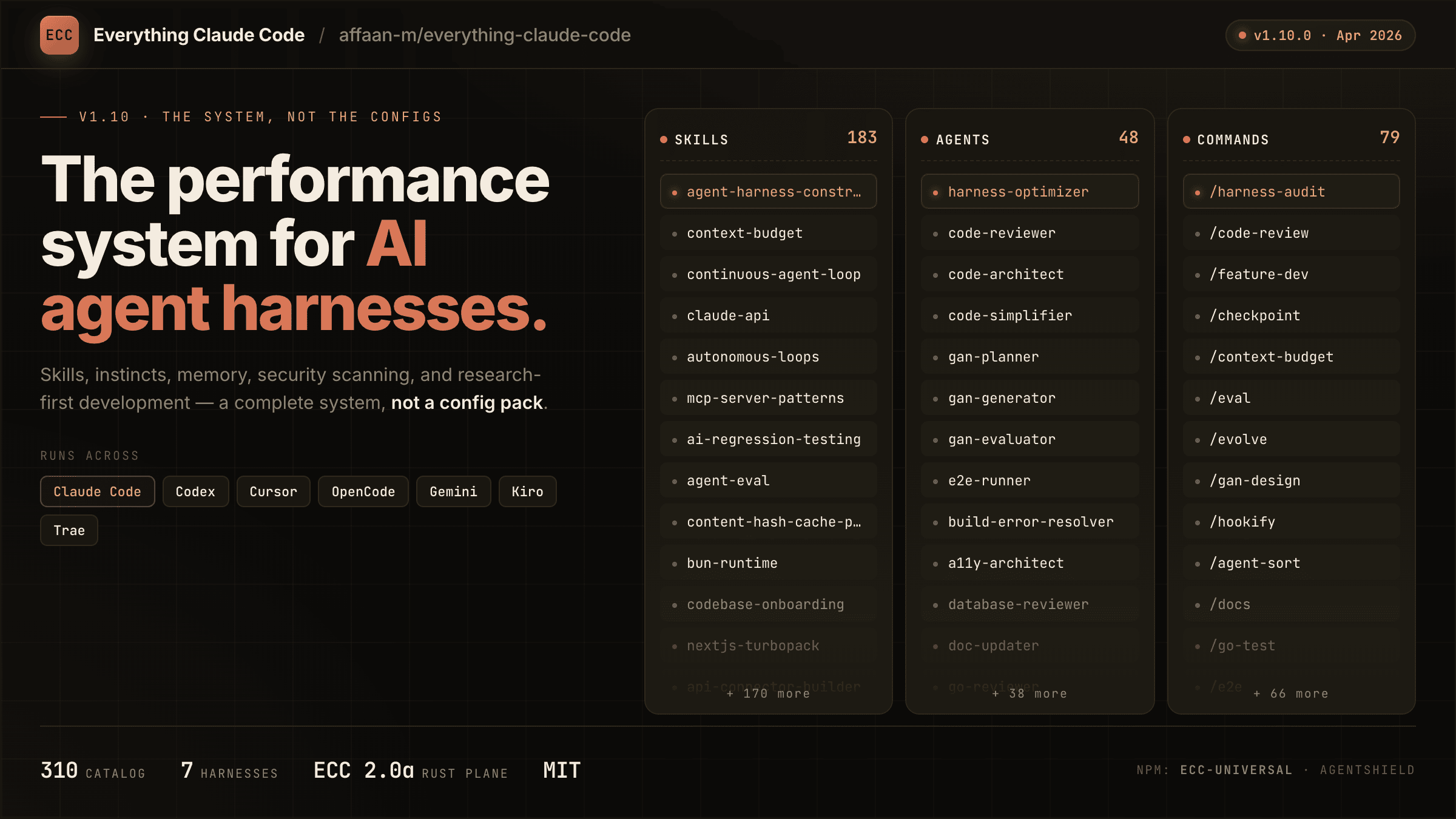
everything-claude-code
A comprehensive bundle of Claude Code optimizations: hooks, commands, CLAUDE.md configs, MCP setups, and workflow automations — everything you need in one repo.
Claude Supermemory
supermemoryai's persistent memory plugin for Claude Code — automatically indexes your codebases, conversations, and notes for semantic search across all sessions.

Claude Code Tools
CLI session utilities for Claude Code including tmux terminal integration, history wrappers, and automation helpers.