
MCP Server Selector
henkisdabro's interactive tool for discovering and configuring MCP servers — search by capability, auto-generate config JSON, and test server connectivity.
Claude Code MCP Server Selector


🌐 Visit Website | 📖 Documentation | ⚡ Quick Start
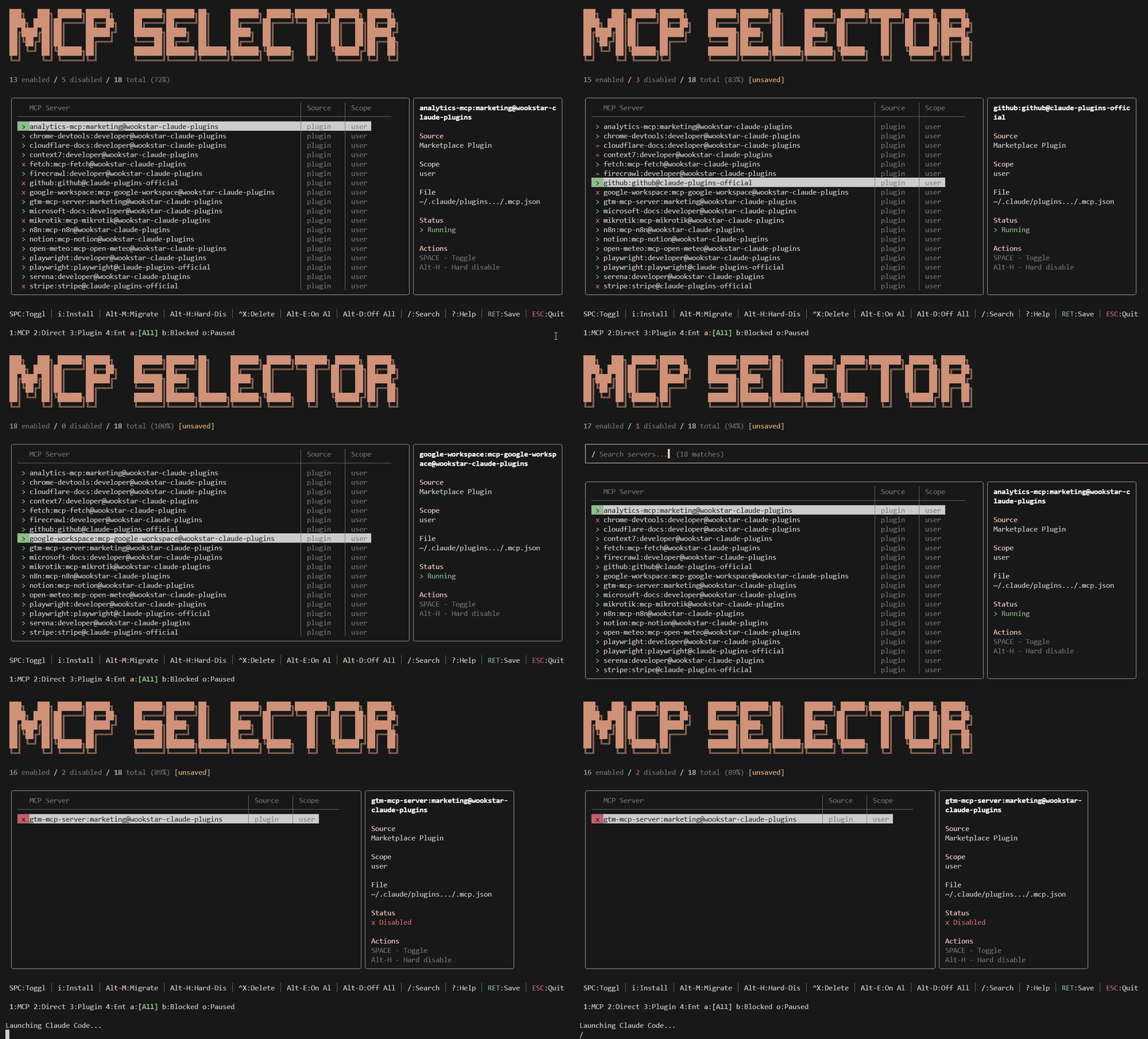
A fast, beautiful TUI for managing MCP (Model Context Protocol) servers in Claude Code. Optimize your context window by enabling only the servers you need, when you need them.
v2.5.1: Plugin marketplace integration with install/uninstall commands and available plugins discovery. Enhanced status bar with compact mode support.
Why Claude Code MCP Server Selector?
Every enabled MCP server bloats your Claude Code context window with tool descriptions, parameters, and usage notes—wasting precious tokens on tools you're not using.
The Real Numbers:
- Average MCP server: 20-30 tools, consuming ~15,000-25,000 tokens each
- Each tool: ~600-800 tokens on average (descriptions, parameters, examples, usage notes)
- Large servers (google_workspace, alphavantage, mikrotik): 60-100+ tools consuming 50,000-85,000 tokens each
- 10 enabled servers: Easily 200,000-250,000 tokens consumed (100-125% of your entire context budget)
- Result: Context budget exhausted before typing your first prompt
This means:
- Massive token waste - 200k+ tokens on tool definitions you're not using
- Context overflow - Already at/over budget before your actual code and conversations
- Severe performance impact - Processing hundreds of unused tools slows every response
- Dramatically higher costs - Paying for 2-5x more tokens than necessary
Claude Code MCP Server Selector solves this: exit Claude, run mcp, enable only the 1-3 servers you need for your current task, and launch Claude with a minimal, optimized context window. Toggle servers with a keypress, see changes in real-time, and launch with optimal settings—all in under a second.
Features
- Context Window Optimization - Enable only the MCP servers you need, minimise token waste
- 3-Way Toggle Cycle - Cycle servers through RED (off) → GREEN (on) → ORANGE (available but disabled)
- Interactive TUI - Fast, intuitive React Ink interface (<1 second startup)
- Real-time Updates - Toggle servers instantly with visual feedback
- Multi-Source Configuration - Discovers and merges 12+ configuration sources with scope precedence
- Marketplace Plugin Discovery - Automatically finds ALL plugins with MCP servers from installed_plugins.json
- Plugin Installation - Install plugins from marketplace directly in the TUI (NEW v2.0)
- CLI Subcommands -
mcp enable/disablefor scriptable server control - Plugin Management -
mcp install/uninstall/list-availablefor marketplace plugins (NEW v2.0) - Integration Commands -
export-disabled,sync-check,context-reportfor automation - Session Awareness - Detects running inside Claude session and warns appropriately
- Enterprise Support - 🏢 Centralised MCP deployment with allowlist/denylist/command/URL matching
- Smart Migration - Automatically migrate global servers to project-level control
- Safe by Design - Atomic updates, automatic backups, file locking for concurrent access, explicit consent for global changes, lockdown mode
- Cross-Platform - Works on Linux, macOS, and Windows (including PowerShell)
- npm Package - Simple installation via npm/npx, Node.js 20+ required
Quick Start
Installation
Via npm (recommended):
npm install -g @henkisdabro/mcp-selector
Or run directly with npx:
npx @henkisdabro/mcp-selector
Requirements: Node.js 20 or later
Usage
Simply run mcp or claudemcp in any directory:
mcp        # Short command
claudemcp  # Descriptive command (same functionality)
The tool will:
- Detect your Claude configuration (project or global)
- Launch the interactive TUI showing all available MCP servers
- Let you enable/disable servers with SPACE (enable only what you need!)
- Save your changes when you press ENTER
- Automatically launch Claude Code with your optimized, minimal configuration
Pro tip: Exit Claude before running this tool to refresh with new settings. Enable only 2-3 servers per session for maximum efficiency.
Passing Arguments to Claude Code
You can pass any command-line arguments directly to Claude Code through the selector:
mcp --help                    # Shows Claude Code help
mcp /path/to/project          # Opens specific project after selection
mcp --version                 # Shows Claude Code version
The tool acts as a transparent wrapper - after you configure your servers and press ENTER, all arguments are forwarded to Claude Code automatically.
CLI Subcommands (NEW v2.0)
Control servers directly from the command line without launching the TUI:
# Enable/disable specific servers
mcp enable fetch github       # Enable multiple servers
mcp disable notion playwright # Disable multiple servers

# Bulk operations
mcp enable --all              # Enable all discovered servers
mcp disable --all             # Disable all discovered servers

# Machine-readable output
mcp enable fetch --json       # Output JSON result
mcp disable fetch --quiet     # Silent operation (exit code only)
Flags:
--json- Output results in JSON format--quiet/-q- Suppress all output (use exit code)--all- Apply to all discovered servers
Plugin Management (NEW v2.0)
Install and manage plugins from the marketplace:
# List available plugins not yet installed
mcp list-available              # Show all uninstalled plugins
mcp list-available --mcp-only   # Only show plugins with MCP servers

# Install a plugin
mcp install developer-toolkit@wookstar-claude-plugins
mcp install finance-toolkit@wookstar-claude-plugins --copy  # Copy to cache

# Uninstall a plugin
mcp uninstall developer-toolkit@wookstar-claude-plugins
In the TUI: Press i to open the install dialog and select from available plugins.
Integration Commands
Commands designed for scripting, hooks, and automation:
# Export disabled servers for hook integration
mcp --export-disabled         # Comma-separated list: fetch,notion,github
mcp --export-disabled --csv   # CSV format with header: server,state,type
mcp --export-disabled --json  # JSON array format

# Check for config/runtime sync issues (detects bug #13311)
mcp --sync-check              # Shows servers with mismatched state
mcp --sync-check --json       # JSON output with severity levels

# Context token analysis
mcp --context-report          # Show estimated token usage per server
Session Awareness: When running inside an active Claude session, the tool warns that changes take effect on the next session restart and suggests using /mcp or @mention for immediate toggles.
Keybindings
| Key | Action |
|---|---|
SPACE | 3-way toggle: RED (off) → GREEN (on) → ORANGE (runtime-disabled) → RED |
i | Install plugin from marketplace (NEW v2.0) |
⌥M / ALT-M | Migrate Direct server to project (full ownership) |
ENTER | Save changes and launch Claude |
ESC | Cancel without saving |
CTRL-X | Remove selected server |
⌥E / ALT-E | Enable all servers |
⌥D / ALT-D | Disable all servers |
j/k or ↑/↓ | Navigate up/down |
macOS Keyboard Shortcuts
Option key shortcuts (⌥) work out of the box in Terminal.app. For VSCode's integrated terminal, you may need to add this setting for single-press shortcuts:
{
  "terminal.integrated.macOptionIsMeta": true
}
Without this setting, VSCode requires pressing the key twice (e.g., Option+E E) due to dead key handling.
UI Indicators
The TUI shows server status with color-coded 3-state indicators:
| Indicator | State | Meaning | Behavior |
|---|---|---|---|
● (green) | GREEN | Enabled, will start | Server runs when Claude launches |
● (orange) | ORANGE | Available but runtime-disabled | Server in config but won't start |
○ (red) | RED | Disabled | Server completely disabled |
3-Way Toggle Cycle
Press SPACE to cycle through all three states:
🔴 RED (OFF) ──────→ 🟢 GREEN (ON) ──────→ 🟠 ORANGE (PAUSED) ──────→ 🔴 RED (OFF)
   Disabled           Will start           Available but disabled         Disabled
State Details:
-
🔴 RED (OFF): Server completely disabled in configuration
- Not in
enabledMcpjsonServers - Added to
disabledMcpjsonServers - Won't appear in Claude at all
- Not in
-
🟢 GREEN (ON): Server enabled and will run
- In
enabledMcpjsonServers(or default enabled) - NOT in
disabledMcpServersruntime override - Starts when Claude launches
- In
-
🟠 ORANGE (PAUSED): Server configured but runtime-disabled
- In
enabledMcpjsonServers(enabled in config) - Also in
disabledMcpServers(runtime override) - Won't start despite being "enabled"
- Use case: Keep server configured but temporarily disable without removing from config
- In
Source Type shows where the server is defined and how it's controlled:
mcpjson- From.mcp.jsonfiles, fully controllable via 3-way toggledirect- From~/.claude.json, 3-way toggle works via runtime overridesplugin- From Claude Code Marketplace, 3-way toggle works via special format
Scope shows the precedence level:
local- Project-local override (highest priority)project- Project-shared configurationuser- User-global settings (lowest priority)
Recommended Workflow
For optimal context window management:
- Exit Claude Code (if running)
- Run
claudemcpin your project directory - Enable only the 2-3 MCP servers you need for your next task (e.g., if working with web APIs, enable
fetch; if debugging time zones, enabletime) - Press ENTER - tool saves changes and launches Claude automatically
- Work efficiently with a minimal context window
- Repeat when you need different tools - exit Claude, run
claudemcp, adjust servers, continue
This workflow ensures Claude's context is focused on your code and task, not filled with unused tool definitions.
Best Practices
Direct Server Control Options
Servers defined in ~/.claude.json (Direct servers) have two control methods:
Option A: Quick-Disable (Default)
- Press
SPACEto toggle server on/off - Writes to
~/.claude.json.projects[cwd].disabledMcpServers - Server definition stays global, but disabled for this project
- Fast, single-step process
- Best for: Temporary disables, quick testing
Option B: Migration (Alternative)
- Press
ALT-Mto migrate server to project - Moves definition to
./.mcp.jsonfor full project ownership - Requires confirmation and creates automatic backup
- Best for: Permanent project-specific control
Organize Your Server Definitions
Recommended server locations:
-
Audit servers in
~/.claude.json:jq '.mcpServers | keys' ~/.claude.json -
Choose control method for Direct servers:
- Quick-disable: Use
SPACEto disable for current project - Migrate: Use
ALT-Mto move to./.mcp.jsonfor full ownership
- Quick-disable: Use
-
Define new servers in
.mcp.jsonfiles:- User-global servers →
~/.mcp.json - Project-specific servers →
./.mcp.json - Avoid adding to
~/.claude.json(use .mcp.json for easier control)
- User-global servers →
Minimize Default Enabled Servers
After migrating your servers, keep your global settings minimal:
# View your global enabled servers
jq '.enabledMcpjsonServers' ~/.claude/settings.json
Recommendation: Start with everything disabled by default:
{
  "enabledMcpjsonServers": [],
  "disabledMcpjsonServers": [
    "fetch",
    "time",
    "notion",
    "playwright"
  ]
}
Then use mcp to enable only what you need, per project, per task.
Project-Level Control
For team projects, use version-controlled settings:
- Define shared servers in
./.mcp.json(committed to git) - Set team defaults in
./.claude/settings.json(committed) - Personal overrides go in
./.claude/settings.local.json(gitignored)
This ensures:
- Team members have consistent server availability
- Individual developers can optimize their own context
- No conflicts from personal preferences
Enterprise Configuration
For IT Administrators: Deploy centralized MCP servers and enforce access policies organization-wide.
Deploying Enterprise MCP Servers
Create managed MCP server configurations that cannot be disabled or modified by users:
File Locations:
- macOS:
/Library/Application Support/ClaudeCode/managed-mcp.json - Linux:
/etc/claude-code/managed-mcp.json - Windows:
C:\ProgramData\ClaudeCode\managed-mcp.json
Example Configuration:
{
  "mcpServers": {
    "company-api": {
      "command": "npx",
      "args": ["@company/internal-mcp-server"],
      "env": {
        "API_KEY": "${COMPANY_API_KEY}"
      }
    },
    "approved-github": {
      "command": "uvx",
      "args": ["mcp-server-github"]
    }
  }
}
Enforcing Access Restrictions
Control which MCP servers users can enable via allowlists and denylists:
File Locations: Same as above, but use managed-settings.json
Example Policy:
{
  "allowedMcpServers": [
    { "serverName": "github" },
    { "serverName": "sentry" },
    { "serverName": "company-api" }
  ],
  "deniedMcpServers": [
    { "serverName": "filesystem" },
    { "serverName": "dangerous-tool" }
  ]
}
Policy Rules:
- Denylist is absolute - Blocks servers across ALL scopes (including enterprise)
- Allowlist restricts user/project - Enterprise servers bypass allowlist
- Empty allowlist
[]- Complete lockdown (deny all non-enterprise servers) - Undefined allowlist - No restrictions (allow all servers)
- Invalid JSON - Automatic lockdown mode (fail-safe security)
Advanced Restriction Matching (NEW v2.0)
Beyond simple server name matching, enterprises can restrict servers by command or URL patterns:
By Server Command:
{
  "deniedMcpServers": [
    { "serverCommand": ["npx", "-y", "mcp-server-github"] }
  ]
}
Exact array match required (order and values must match).
By Server URL (for HTTP/SSE transports):
{
  "allowedMcpServers": [
    { "serverUrl": "https://*.company.com/*" }
  ]
}
Supports wildcard patterns with *.
Marketplace Restrictions:
{
  "strictKnownMarketplaces": [
    { "source": "github", "repo": "acme-corp/approved-plugins" }
  ]
}
Empty array [] triggers complete marketplace lockdown.
Exclusive Enterprise Mode
When managed-mcp.json contains mcpServers, exclusive mode activates:
- Users cannot add ANY servers
- Only enterprise-defined servers are available
- Banner displays "Exclusive Enterprise Mode" indicator
User Experience with Enterprise Policies
When enterprise policies are active, users will see:
Visual Indicators:
- 🏢 = Enterprise-managed server (cannot be disabled)
- 🔒 = Blocked by denylist (cannot be enabled)
- ⚠️ = Not in allowlist (cannot be enabled)
Banner Example:
━━━━━━━━━━━━━━━━━━━━━━━━━━━━━━━━━━━━━━━━━━━━━
🏢 Enterprise Policies Active
   • 2 enterprise-managed servers (cannot be modified)
   • Access restricted to 5 approved servers
   • 1 servers blocked by policy
━━━━━━━━━━━━━━━━━━━━━━━━━━━━━━━━━━━━━━━━━━━━━
Lockdown Mode: If enterprise configuration files have invalid JSON, the tool enters lockdown mode:
- Only enterprise-managed servers are available
- All user/project servers are blocked
- Prominent warning displayed
- Contact IT administrator to resolve
Configuration Precedence
Understanding how Claude Code resolves configuration from multiple sources:
Control Array Effectiveness
Control arrays only work in specific locations:
| Control Array | ✅ Valid Locations | ❌ Invalid Locations | Purpose |
|---|---|---|---|
enabledMcpjsonServers | .claude/settings*.json | ~/.claude.json | Enable .mcp.json servers |
disabledMcpjsonServers | .claude/settings*.json | ~/.claude.json | Disable .mcp.json servers |
disabledMcpServers | ~/.claude.json only | .claude/settings*.json | Disable Direct servers |
enabledPlugins | .claude/settings*.json | ~/.claude.json | Control marketplace plugins |
Scope Precedence (Highest to Lowest)
| Priority | Scope | Files | Overrides |
|---|---|---|---|
| 3 (Highest) | Local | ./.claude/settings.local.json | Everything |
| 2 | Project | ./.claude/settings.json | User settings |
| 1 (Lowest) | User | ~/.claude/settings*.json | Nothing |
Special: disabledMcpServers in ~/.claude.json:
- Root level = user scope (priority 1)
.projects[cwd]= local scope (priority 3, overrides root)
Examples
Example 1: MCPJSON Server Control
User:    fetch enabled in ~/.claude/settings.json
Project: fetch disabled in ./.claude/settings.json
Result:  DISABLED (project wins)
Example 2: Direct Server Quick-Disable
Global:  time defined in ~/.claude.json .mcpServers
Project: time disabled in ~/.claude.json .projects[cwd].disabledMcpServers
Result:  DISABLED for this project, enabled globally elsewhere
Installation
Prerequisites
- Node.js 20.0 or later
npm Install (Recommended)
npm install -g @henkisdabro/mcp-selector
This will install mcp and claudemcp commands globally.
npx (No Installation)
Run directly without installing:
npx @henkisdabro/mcp-selector
Development Install
# Clone the repository
git clone https://github.com/henkisdabro/Claude-Code-MCP-Server-Selector.git
cd Claude-Code-MCP-Server-Selector

# Install dependencies
npm install

# Run in development mode
npm run dev

# Build for production
npm run build
Upgrading from v1.x (Bash Version)
If you previously installed the bash-based version, you should remove it before installing the npm version to avoid conflicts:
# Check if old bash script exists
which mcp

# If it points to ~/.local/bin/mcp or similar (not an npm path), remove it:
rm ~/.local/bin/mcp ~/.local/bin/claudemcp 2>/dev/null

# Then install the new version
npm install -g @henkisdabro/mcp-selector
Alternatively, use the install script which handles migration automatically:
curl -fsSL https://raw.githubusercontent.com/henkisdabro/Claude-Code-MCP-Server-Selector/main/install-npm.sh | bash
The install script will:
- Detect old bash-based installations
- Prompt to remove them (or auto-remove in CI with
MCP_INSTALL_NONINTERACTIVE=1) - Clean up old temporary state files
- Install the new npm package
How It Works
The Context Window Problem
The problem is far worse than you might think. Every MCP server you enable adds tool definitions to Claude's context window—and each tool consumes significant tokens.
The Math:
- Each tool: ~600-800 tokens on average (descriptions, parameters, examples, usage notes)
- Average server: 20-30 tools = ~15,000-25,000 tokens per server
- Large servers: 60-100+ tools = 50,000-85,000 tokens each
- 10 enabled servers: ~200,000-250,000 tokens (100-125% of your 200k context budget)
The Impact:
- Context budget exhausted or exceeded before your first prompt
- Claude processes hundreds of tool definitions you're not using
- Less space for your actual code, files, and conversation
- Slower responses and higher costs from token overhead
The Solution: This tool lets you enable servers only when needed. Disable unnecessary servers and reclaim 100k-200k+ tokens for your actual work. Enable only the 1-3 servers relevant to your current task.
Configuration Architecture
Claude Code MCP Server Selector understands two separate but related concepts:
1. Server Definitions (mcpServers object)
These define what servers exist and how to run them:
{
  "mcpServers": {
    "fetch": {
      "command": "uvx",
      "args": ["mcp-server-fetch"]
    },
    "time": {
      "command": "uvx",
      "args": ["mcp-server-time"]
    }
  }
}
Can be defined in any of these files:
~/.claude.json(user-global or project-specific via.projects[cwd])~/.mcp.json(user-global)./.mcp.json(project-local)
2. Enable/Disable State (control arrays)
These control which servers are active:
{
  "enabledMcpjsonServers": ["fetch", "time"],
  "disabledMcpjsonServers": ["github", "notion"]
}
Can be configured in any of these files:
./.claude/settings.local.json(project-local, highest priority)./.claude/settings.json(project-shared)~/.claude/settings.local.json(user-local)~/.claude/settings.json(user-global)
Critical Limitation: These arrays only work for servers defined in .mcp.json files. Servers defined directly in ~/.claude.json must use quick-disable (SPACE) or migration (ALT-M) for control.
Configuration Sources (12+)
v1.5.0: Enhanced marketplace plugin discovery now finds ALL plugins with .mcp.json files, not just those marked as category: "mcpServers".
The tool discovers and merges all available configuration files:
LOCAL SCOPE (highest priority):
./.claude/settings.local.json- Project-local overrides (gitignored, where changes are saved)
PROJECT SCOPE:
2. ./.claude/settings.json - Project-shared settings (version-controlled)
3. ./.mcp.json - Project MCP server definitions
USER SCOPE (lowest priority):
4. ~/.claude/settings.local.json - User-local settings
5. ~/.claude/settings.json - User-global settings
6. ~/.claude.json - Main user configuration (definitions and project overrides)
7. ~/.mcp.json - User MCP server definitions
MARKETPLACE PLUGINS (user scope, v1.5.0):
8. ~/.claude/plugins/marketplaces/{MARKETPLACE}/.claude-plugin/marketplace.json - Root-level mcpServers
9. ~/.claude/plugins/marketplaces/{MARKETPLACE}/{PLUGIN}/.mcp.json - Plugin-specific MCP servers
The tool now discovers marketplace plugins using TWO methods:
- Root-level: Checks for
mcpServersobject directly in marketplace.json - Source-guided: Follows each plugin's
.sourcefield to find.mcp.jsonfiles (regardless of category)
This means plugins like developer-toolkit, gtm-suite, ai-toolkit with MCP servers are now automatically discovered, even if not categorized as category: "mcpServers".
Server Types
The tool categorizes servers into four types:
MCPJSON Servers (Fully Controllable)
- Source: Defined in
.mcp.jsonfiles - Control: Can be toggled via enable/disable arrays
- UI Indicator:
●(green) when enabled,○(red) when disabled - Label: Shows scope and type, e.g.,
● fetch │ mcpjson │ project
Plugin Servers (Marketplace, v1.5.0)
- Source: Discovered from Claude Code Marketplace installations
- Discovery Methods:
- Root-level
mcpServersin marketplace.json - Plugin
.mcp.jsonfiles via.sourcefield (finds ALL plugins with MCP servers)
- Root-level
- Control: Toggle via
enabledPluginsobject in settings files - UI Indicator:
●(green) when enabled,○(red) when disabled, with plugin badge - Label: Shows as
● developer-toolkit@marketplace │ plugin │ user - Example Paths:
~/.claude/plugins/marketplaces/wookstar/developer-toolkit/.mcp.json~/.claude/plugins/marketplaces/wookstar/gtm-suite/.mcp.json
- Note: Discovers plugins regardless of category (development, analytics, ai, etc.)
Direct-Global Servers (Quick-Disable or Migration)
- Source: Defined in
~/.claude.jsonroot.mcpServers - Control: Two options available:
- Quick-Disable: Press
SPACEto toggle on/off (writes to.projects[cwd].disabledMcpServers) - Migration: Press
ALT-Mto migrate to./.mcp.jsonfor full project ownership
- Quick-Disable: Press
- UI Indicator:
●(green) when enabled,○(red) when disabled - Label: Shows as
● server │ direct │ user
Direct-Local Servers (Quick-Disable or Migration)
- Source: Defined in
~/.claude.json.projects[cwd].mcpServers - Control: Two options available:
- Quick-Disable: Press
SPACEto toggle on/off (writes to.projects[cwd].disabledMcpServers) - Migration: Press
ALT-Mto migrate to./.mcp.jsonfor full project ownership
- Quick-Disable: Press
- UI Indicator:
●(green) when enabled,○(red) when disabled - Label: Shows as
● server │ direct │ local
Dual Precedence Resolution
The tool applies precedence independently for definitions and state:
Definition Precedence (which server configuration to use):
- Local > Project > User scope
- If
fetchdefined in multiple files, the highest scope wins
State Precedence (whether server is on/off):
- Local > Project > User scope
- If
fetchenabled in one file but disabled in another, highest scope wins
Example:
User scope: fetch defined with default args + enabled
Project scope: fetch defined with custom args + disabled
Result: Uses project definition (custom args) + disabled state
Display: [OFF] fetch (project, mcpjson)
Migration System
For Direct servers (defined in ~/.claude.json), pressing ALT-M offers to migrate the server to ./.mcp.json:
What migration does:
- Creates timestamped backup of
~/.claude.json - Copies server definition to
./.mcp.json - Removes server from
~/.claude.json - Marks server as migrated (prevents re-prompting)
- Reloads server list - server is now controllable
Migration options:
[y]Yes - Migrate and disable (recommended for project control)[v]View - Show full server definition before deciding[n]No - Keep enabled globally (cancel migration)
Safety features:
- Explicit user consent required
- Automatic backups before modification
- Atomic operations with validation
- Automatic rollback on failure
New Project Flow
When you run mcp in a directory without local configuration:
- Detects global config exists
- Prompts you to choose:
- Create local config (copies global as template)
- Continue with global only (changes still saved locally)
- Abort
- All changes save to
./.claude/settings.local.json
Important: Changes are always saved to project-local settings, never to global configuration (unless you explicitly choose to migrate a server).
State Management
The tool uses a temporary state file to track changes:
- Blazing fast interactions (sub-50ms toggles)
- Safe experimentation (cancel anytime with ESC)
- Atomic writes (no partial updates or corruption)
- Real-time preview updates
Configuration Files Reference
Understanding which files do what:
Server Definition Files
These files contain mcpServers objects that define what servers exist and how to run them:
| File | Scope | Purpose | Controllable? |
|---|---|---|---|
~/.claude.json (root .mcpServers) | User | Global server definitions | ❌ Always enabled |
~/.claude.json (.projects[cwd].mcpServers) | Local | Project-specific definitions in global file | ❌ Always enabled |
~/.mcp.json | User | User-global MCPJSON servers | ✅ Via enable/disable arrays |
./.mcp.json | Project | Project-local MCPJSON servers | ✅ Via enable/disable arrays |
Control Files (Enable/Disable Arrays)
These files contain enabledMcpjsonServers and disabledMcpjsonServers arrays that control which MCPJSON servers are active:
| File | Scope | Purpose | Priority |
|---|---|---|---|
./.claude/settings.local.json | Local | Where this tool saves changes (gitignored) | Highest |
./.claude/settings.json | Project | Shared project settings (version-controlled) | Medium-High |
~/.claude/settings.local.json | User | User-local overrides | Medium-Low |
~/.claude/settings.json | User | User-global settings | Lowest |
Which Files Control What?
For MCPJSON servers (defined in .mcp.json files):
- Definition comes from: Highest scope
.mcp.jsonfile (local > project > user) - State (on/off) comes from: Highest scope settings file with enable/disable arrays
For Direct servers (defined in ~/.claude.json):
- Definition comes from:
~/.claude.json(root or.projects[cwd]) - State: Always enabled, cannot be controlled via arrays
- To control: Must migrate to
./.mcp.jsonfirst (tool handles this automatically)
Recommended File Organization
For maximum flexibility and control:
-
Define servers in
.mcp.jsonfiles (not~/.claude.json)- User-global servers →
~/.mcp.json - Project-specific servers →
./.mcp.json
- User-global servers →
-
Control servers via settings files
- Let this tool manage
./.claude/settings.local.json - Or manually edit enable/disable arrays
- Let this tool manage
-
Migrate existing direct servers
- Use this tool to migrate servers from
~/.claude.jsonto./.mcp.json - Gain project-level control over previously global servers
- Use this tool to migrate servers from
Enterprise Environments
Note for Enterprise Users: If your organization uses enterprise-managed MCP configurations (via managed-mcp.json or managed-settings.json), this tool operates independently of those enterprise controls. Enterprise configurations may restrict which MCP servers can be enabled or disabled.
For enterprise-managed environments, please:
- Check with your IT administrator about MCP server policies
- Use
claude mcp listto see all servers including enterprise-managed ones - Refer to official Claude Code MCP documentation for enterprise configuration details
This tool is designed primarily for individual developers and teams managing their own MCP server configurations.
Updating
Manual Update (Recommended)
To update to the latest version:
npm update -g @henkisdabro/mcp-selector
Or explicitly install the latest version:
npm install -g @henkisdabro/mcp-selector@latest
Check Current Version
mcp --version
# or
npm list -g @henkisdabro/mcp-selector
Check for Available Updates
npm outdated -g @henkisdabro/mcp-selector
Using npx (Always Latest)
If you prefer to always use the latest version without managing updates, use npx:
npx @henkisdabro/mcp-selector
This fetches the latest version each time (with caching for performance).
Automatic Updates
npm does not support automatic updates for global packages natively. This is by design - automatic updates could introduce breaking changes without user awareness.
Recommended approach: Check for updates periodically with npm outdated -g or subscribe to release notifications on GitHub.
Alternative: If you want always-latest behaviour, use npx instead of a global installation. The slight startup overhead is minimal.
Uninstall
To completely remove Claude Code MCP Server Selector:
npm uninstall -g @henkisdabro/mcp-selector
Your Claude configuration files (.claude/settings.json) will not be affected.
Troubleshooting
Node.js version too old
This tool requires Node.js 20 or later. Check your version:
node --version
If you need to update, use a version manager like nvm or fnm, or download from nodejs.org.
Command not found after global install
Ensure npm's global bin directory is in your PATH:
npm config get prefix
# Add {prefix}/bin to your PATH
Can't find claude binary
The tool looks for Claude via command -v claude. Make sure Claude Code CLI is properly installed.
Direct servers from ~/.claude.json
Direct servers (defined in ~/.claude.json) have two control methods:
Quick-Disable (Default):
- Press
SPACEon the Direct server to toggle it on/off - Changes are written to
~/.claude.json.projects[cwd].disabledMcpServers - Server definition stays global but is disabled for this project only
- Fast and reversible
Migration (Alternative):
- Press
ALT-Mon the Direct server - Choose
[y]to migrate (tool creates automatic backup) - Server definition moves to
./.mcp.json - Gain full project ownership and control
Choose quick-disable for temporary needs, migration for permanent project-specific control.
Migration failed or want to rollback
If migration fails, the tool automatically restores from backup. To manually rollback:
# Find backup files
ls -lt ~/.claude.json.backup.*

# Restore specific backup
cp ~/.claude.json.backup.YYYYMMDD_HHMMSS ~/.claude.json
Backups are timestamped and created before any modification to ~/.claude.json.
Changes not taking effect
After saving changes with ENTER:
- Tool automatically launches Claude with new settings
- If Claude was already running, exit and run
mcpagain - Check that changes were saved to
./.claude/settings.local.json:jq '.enabledMcpjsonServers' ./.claude/settings.local.json
Development
Project Structure
Claude-Code-MCP-Server-Selector/
├── src/
│   ├── cli/                       # CLI entry point and commands
│   │   ├── index.ts               # Main CLI with Commander
│   │   └── commands/              # Subcommand implementations
│   ├── tui/                       # React Ink TUI
│   │   ├── App.tsx                # Main TUI application
│   │   ├── components/            # UI components
│   │   ├── hooks/                 # React hooks (key bindings, etc.)
│   │   └── store/                 # Zustand state management
│   ├── core/                      # Core business logic
│   │   ├── config/                # Configuration parsing and writing
│   │   ├── plugins/               # Plugin installation logic
│   │   └── servers/               # Server toggle logic
│   ├── types/                     # TypeScript type definitions
│   └── utils/                     # Platform utilities
├── package.json                   # npm package configuration
├── tsconfig.json                  # TypeScript configuration
└── reference/                     # Technical reference docs
    ├── ARCHITECTURE.md            # Function references, data flow
    ├── CONFIGURATION.md           # Config sources, control arrays
    └── ENTERPRISE.md              # Enterprise features
Development Commands
# Run in development mode (with hot reload)
npm run dev

# Type check
npm run typecheck

# Run tests
npm test

# Build for production
npm run build
Design Principles
- Speed - Sub-second launch, instant interactions
- Safety - Atomic writes, validation, never corrupt configs
- Clarity - Always show current vs pending state
- Cross-Platform - Works on Linux, macOS, Windows, and WSL
- Type Safety - Full TypeScript with strict mode
Cross-Platform Reliability
The tool handles platform-specific edge cases:
- Windows path normalisation - Converts backslashes to forward slashes and uppercases drive letters to match Claude Code's format
- WSL detection - Specifically detects
microsoft-standardorwslin kernel release to avoid false positives on Azure VMs - File locking - Uses advisory locks with retry and stale detection for concurrent access protection
- Symlink resolution - Follows symlinks with depth protection (max 10 levels) to prevent infinite loops
- Executable detection - Cross-platform PATH searching without shell commands, with security checks for path traversal
Quick Reference
File Roles Cheat Sheet
| File | Contains | Controls What | Priority |
|---|---|---|---|
./.claude/settings.local.json | Enable/disable arrays | MCPJSON servers on/off | Highest (tool writes here) |
./.mcp.json | Server definitions | Project server configs | High (project scope) |
~/.claude.json | Server definitions + disabledMcpServers | Direct servers (quick-disable or migrate) | Medium (writes to .projects[cwd]) |
~/.mcp.json | Server definitions | User-global servers | Medium (controllable) |
~/.claude/settings.json | Enable/disable arrays | MCPJSON servers on/off | Low (user-global) |
Server Type Quick Lookup
● fetch  │  mcpjson  │  project   → Defined in ./.mcp.json, toggle on/off with SPACE
○ time   │  mcpjson  │  user      → Defined in ~/.mcp.json, toggle on/off with SPACE
● github │  direct   │  user      → Defined in ~/.claude.json, SPACE=quick-disable, ALT-M=migrate
○ stripe │  direct   │  local     → Disabled via quick-disable, SPACE to re-enable
Common Commands
# Launch TUI
mcp         # Short command
claudemcp   # Descriptive command

# CLI subcommands (NEW v2.0)
mcp enable fetch github       # Enable specific servers
mcp disable --all             # Disable all servers
mcp enable fetch --json       # JSON output

# Integration commands (NEW v2.0)
mcp --export-disabled         # List disabled servers
mcp --sync-check              # Check config/runtime sync
mcp --context-report          # Token usage analysis

# Check server definitions
jq '.mcpServers | keys' ~/.claude.json      # Global direct servers
jq '.mcpServers | keys' ~/.mcp.json         # Global MCPJSON servers
jq '.mcpServers | keys' ./.mcp.json         # Project MCPJSON servers

# Check enabled/disabled state
jq '.enabledMcpjsonServers' ./.claude/settings.local.json   # Local overrides
jq '.disabledMcpjsonServers' ./.claude/settings.local.json  # Local overrides

# Reset project approval choices (if Claude Code prompts for approval)
claude mcp reset-project-choices

# Find migration backups
ls -lt ~/.claude.json.backup.*
Decision Tree
When adding a new server:
- ✅ Define in
./.mcp.json(project) or~/.mcp.json(user) for full control - ⚠️ Avoid defining in
~/.claude.json(requires quick-disable or migration for control)
When working with Direct servers:
- For temporary disable: Press
SPACE(quick-disable for this project) - For permanent project control: Press
ALT-M→ choose[y]to migrate - Migration moves server to
./.mcp.json→ full project ownership
When setting defaults:
- Disable all servers globally: Edit
~/.claude/settings.json - Enable per-project: Let this tool manage
./.claude/settings.local.json - Team defaults: Edit
./.claude/settings.json(committed to git)
Credits
Built by Henrik Söderlund for the Claude Code community.
Powered by:
License
MIT License - see LICENSE file for details.
More Plugins
everything-claude-code
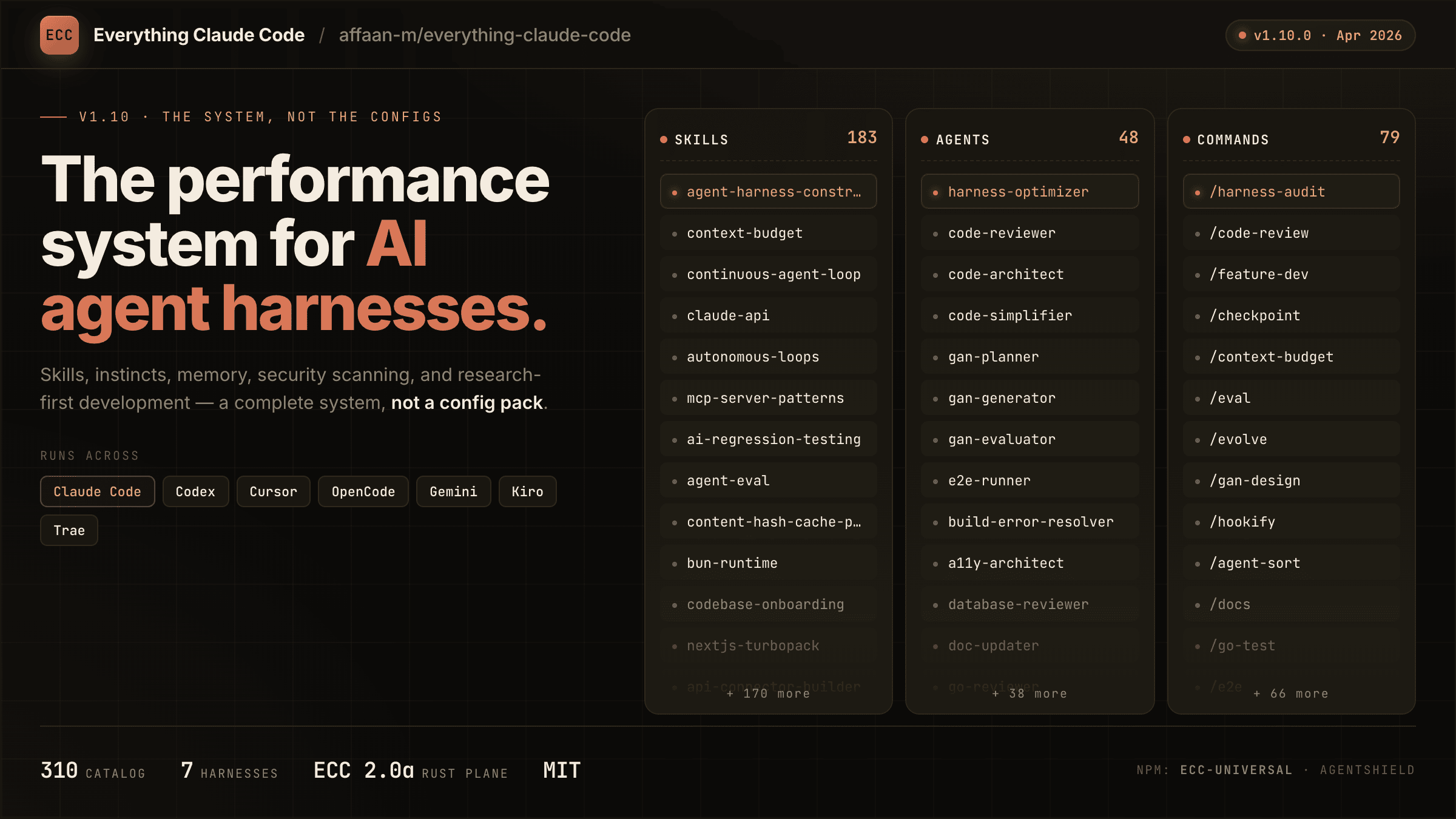
A comprehensive bundle of Claude Code optimizations: hooks, commands, CLAUDE.md configs, MCP setups, and workflow automations — everything you need in one repo.
Claude Supermemory
supermemoryai's persistent memory plugin for Claude Code — automatically indexes your codebases, conversations, and notes for semantic search across all sessions.

Claude Code Tools
CLI session utilities for Claude Code including tmux terminal integration, history wrappers, and automation helpers.